The Monitor I Didn’t Buy Yet (and the KVM I Did)

I’ve had dual monitors on my desk for as long as I can remember. There was even a stretch when I was single and had more space where I ran three. It’s the same desk I have today, but back then it had a bridge section making the corner, with an L of extra desk where a third monitor lived. It was nice. A computer for one thing, a computer for another. I peripherate on computers. Back then it was the server, the laptop, the work laptop. Now it’s really just personal and work.

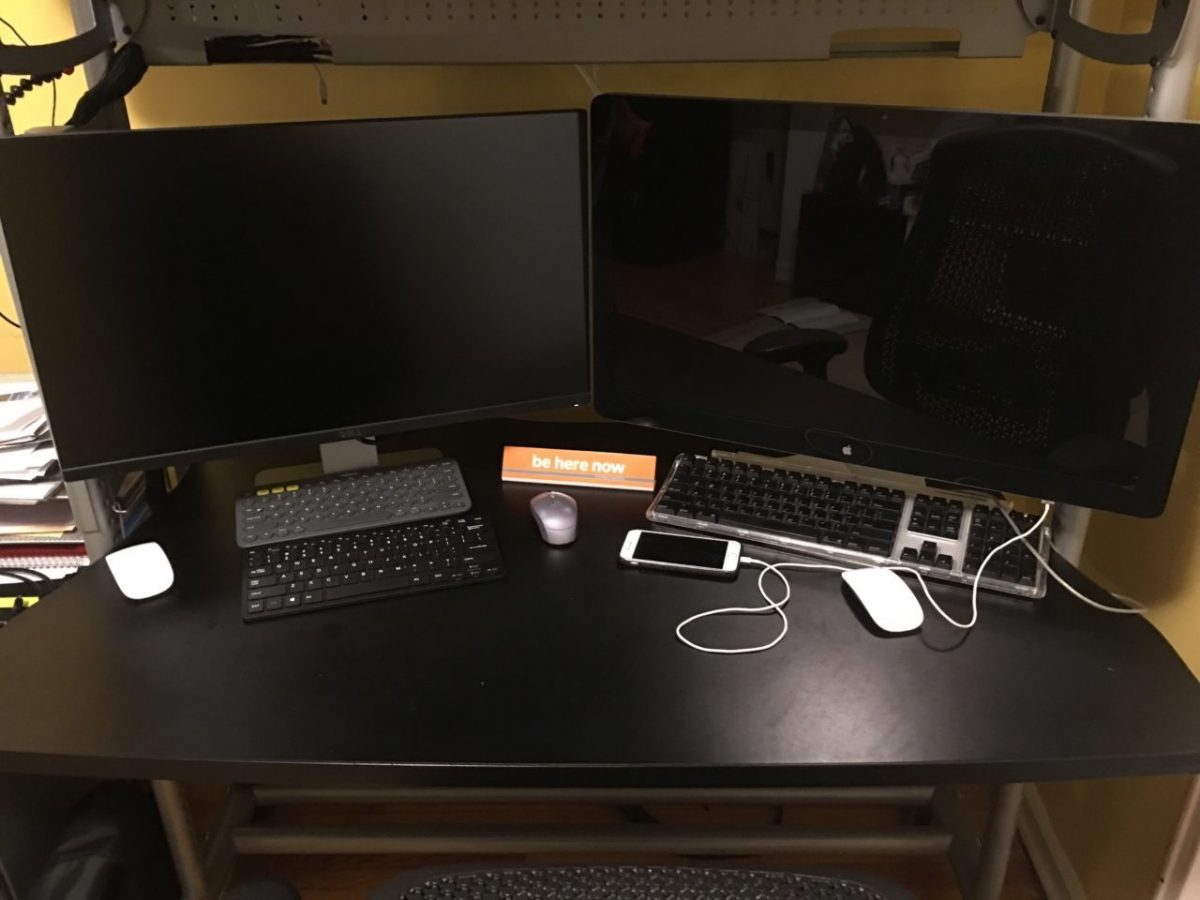
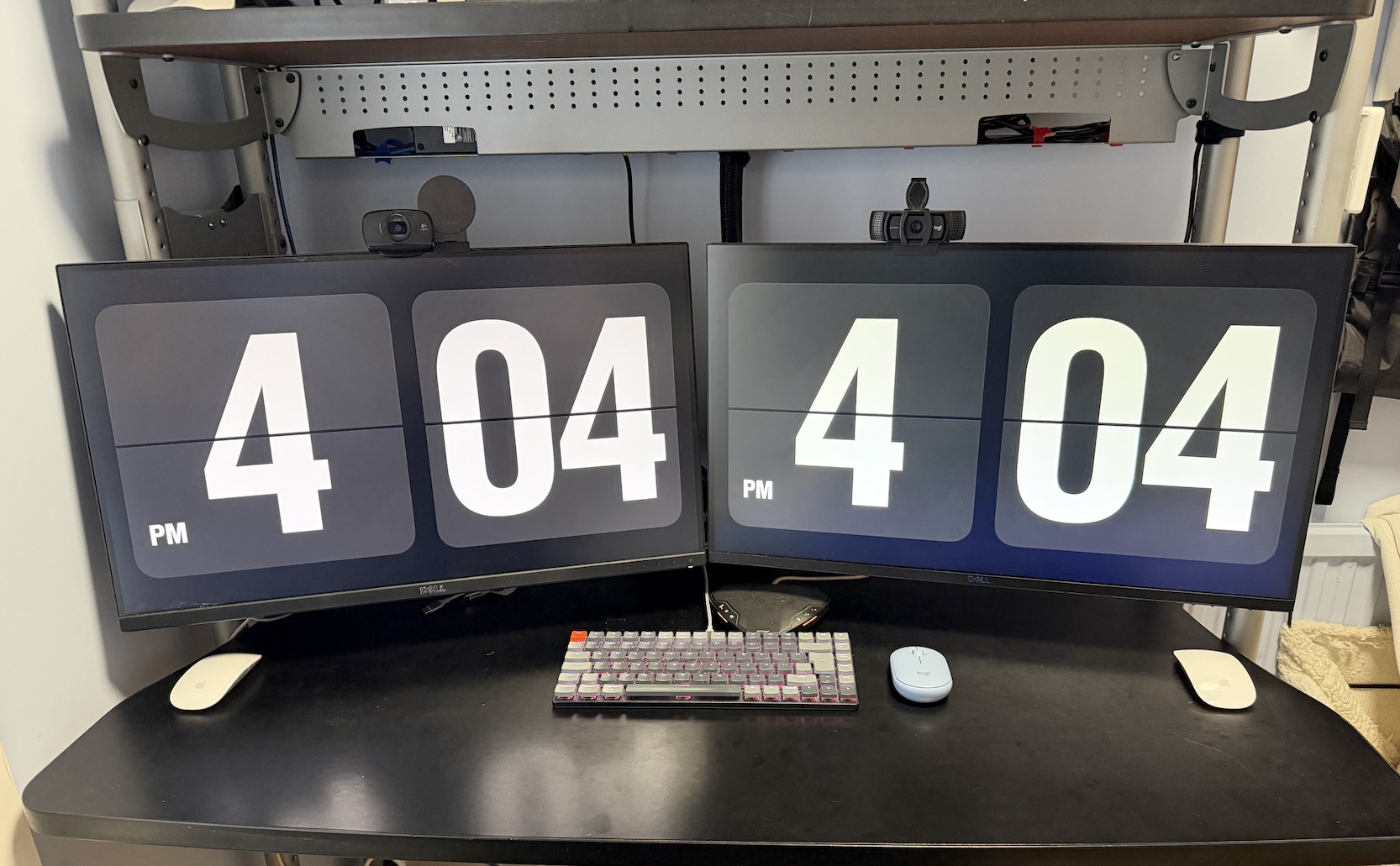
The thing is, I’ve almost always run individual setups. One monitor, one machine. Pivot between the two as needed. Lately though I’ve been eyeing a bigger monitor, partly because the ones at work are genuinely nice. Slightly curved, something in the 30-plus range, not as big as I want, but really nice. I also like the idea of a cleaner desk. In the past I used software to move keyboard and mouse across two computers using two monitors and one mouse and keyboard, but my work machine is locked down tight enough, rightfully so, that I can’t install anything like that. So it’s been two keyboards and two mice, physically. Even with an Ergotron monitor arms keeping both screens off the desk, between the monitors, the keyboards, and the speakerphone, it gets cluttered fast.

So I’ve been paused on the bigger monitor for a while. Partly because the one I actually want, the largest decent one that fits my space, costs more than my last computer. I’m hoping the price comes down, or I talk myself into something cheaper, but that’s only part of it. The bigger part is that because it’s so expensive, I don’t want to just pull the trigger and end up unhappy. Unhappy in the sense of: do I actually want single-computer focus, or do I want the ability to pivot between two things running at once? Historically I’ve always liked the pivot. I’ve had KVMs around for probably 25 years, going back to a four-port one on part of my desk at work and a dual one on another when I was building systems. Not something I do now, but clearly that’s foreshadowing where this goes. My kids actually asked me about all this while I was setting it up, which was a fun tangent.

So the thinking became: if I’m not sure the big single monitor is worth it yet, is it worth getting a proper KVM instead and using both monitors I already have, just switching computers on the fly? I’ve tried the manual version of this before, switching monitor inputs by hand between the two computers, and it’s a nuisance. Not fast. Basically a one-time decision each morning (this monitor goes to work, that one stays put) rather than something you casually flip back and forth on, because you’re waiting a minute or two for the input to catch up every time. A KVM is just press a button and it switches. That was the appeal: I don’t need both computers live and visible constantly, but if I need ten seconds on the other one, I can jump over and jump back.

I did the research (with some help from Claude, since I had a pretty specific use case) because both computers are MacBooks with different video requirements: a MacBook Air at home, a MacBook Pro for work. I’ve also got two docks in play, a Dell Thunderbolt Dock WD19TBS for my personal machine, plus a USB-C extender with HDMI I’d been using, and an old Dell D6000 dock from work I could put back into service. I had to give the AI very specific details on exactly what hardware I had, and whether it would actually work together. It came back saying one of my docking stations might be problematic and flagged some KVM models and brands worth looking at. I settled on a TESmart DKS202-MC24, found an open-box unit on eBay about £120 cheaper than new, and also picked up a used Dell WD22TB4 dock, a newer generation than what I had, on the theory it would fix a potential DisplayPort driver issue with my existing setup.

Everything arrived last week and I set it up. The MacBook Air side gave me trouble right away: instead of extending across both monitors, it just mirrored them, which isn’t how it’s supposed to behave. Not entirely sure if that’s on the docking station itself or something about how the KVM sits in between it and the Mac. Either way, the fix was to stop routing that monitor through the dock. That port wasn’t actually spare, I had a mini YubiKey plugged into it, so I moved that over to the dock to free it up, then ran a Thunderbolt to DisplayPort cable I already had lying around straight from the KVM to that monitor instead. Now I’m running two cables: one to the dock, one direct. Not elegant, but it works.

Side tangent I keep circling: I’ve been wondering if I actually want a Mac mini instead of the MacBook Air, even though the Air is fairly new. I’ve been using my iPad more, and I’d rather have a fixed machine at the desk for the remote AI sessions and similar work, which points toward a mini rather than a laptop I’m not really using as a laptop. If something happened to it, we do have an older M1 MacBook Air the family keeps around that my wife barely touches and the kids ignore in favor of their iPads, so there’s a fallback. But that’s getting ahead of myself. For now, the Air setup functionally works. If I went with the Mini I wouldn’t have this dock in the middle of the configuration.

The work side had its own flakiness. Even with the newer WD22TB4, the second monitor doesn’t always get picked up. Same fix: I plugged one monitor directly into the MacBook Pro instead of routing it through the dock. The Pro has more ports to spare, and I wasn’t using that second one anyway, so it’s a reasonable cheat. Both monitors work now. The WD22TB4 kept being just flaky enough, though, that I eventually gave up on it entirely and went back to the D6000 as my daily work dock, with the WD22TB4 sitting unused for now.

Even without any special software, the keyboard plugged straight into the KVM switches between the two computers with a keyboard shortcut, seamlessly. I’m using a Keychron K3 Version 2 wireless keyboard, UK ISO layout, but I’ve got it wired in for this to work, which mildly annoys me since the whole point of that keyboard is Bluetooth. Except this isn’t actually new: even in the old two-computers-two-monitors setup I just left, I had two of these same keyboards wired into each computer anyway, because Bluetooth took too long to wake up whenever I came back to the desk. So wired was always the practical answer, I just needed two cables for it instead of one. Now there’s exactly one keyboard cable on the desk instead of two, which is basically the only real cable left.

Mice are messier. I like Apple’s Magic Mouse, but they pair directly to a computer over Bluetooth, which won’t work with a KVM. I’ve got a Logitech Pebble mouse that does switch between the two machines through the KVM via USB, but I’m not a fan of how the scrolling feels on it. So for now I’m still running two mice on the desk and slowly trying to wean myself onto the Pebble full time.

The end result, though, is pretty good. I’ve been living with the dual-monitor-plus-KVM setup for both work and personal use over the past couple of days. It takes some adjustment, figuring out the habit of what lives on which screen. But so far, so good. I’m hopeful enough about it that I still picture eventually moving to a single unified monitor, which would simplify all of this considerably.

The catch there is that as much as I’d want the monitors closer, they’re honestly already too close because of the metal shelf poles running above my desk. It’s all one unit, so if I pushed the monitors back to give myself more room, the poles would start blocking the view. The monitor I’ve been eyeing, which is by no means the biggest one I actually want, just the biggest that fits my space, would fix some of that and let me adjust things properly. I’d originally wanted something that matched the exact real estate of my two current 27 inch monitors combined, but that simply won’t fit on the desk. And now that I’m actually living with these two side by side, I’m realizing I don’t really use the outer quarter of either screen anyway, since it means pivoting my whole body to see it. So the smaller monitor I’m looking at, and by smaller I mean still around 40 inches, is probably plenty. That’s a topic for another day, if I actually pull the trigger.

For now, so far so good on the dual monitor KVM setup.

And if you read this far the time of 404 was not at all intentional.
My New New New MacBook Pro

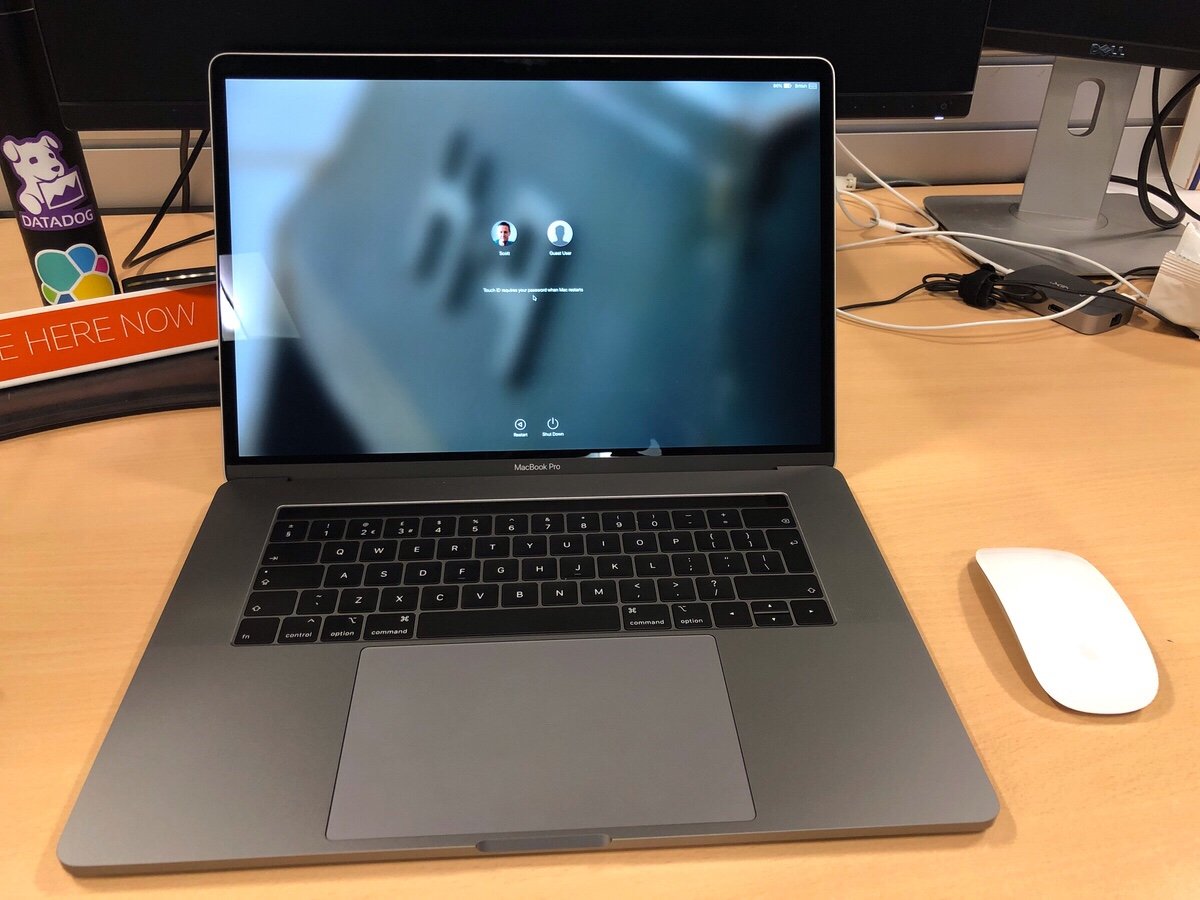
Yesterday (as of writing not publishing this) I got my new MacBook Pro for work. I requested it in May and due to several factors I only received it in late August. The good news about living through a huge lead time was that after the new model was announced I got automatically switched over get that one since they couldn’t source the old one. Turns out they will order you a new computer when the battery starts bulging on the old one to the point where it won’t lie flat on the desk anymore. On top of the fact that it was out of warranty.

Thew new MacBook Pro is pretty nice. It is a well-equipped 15″ touch bar in space gray. I spent all of my spare time over the past two days including last night on my couch trying to set it up. In many ways this computer is more powerful than the 2015 13 inch pro I have. In others it’s not. It has the same amount of RAM. It also comes with the same SSD size. The processor is several generations newer. There is a discrete graphics card in it and it is the same weight as my old 13″ model since prior generations made the machines lighter.

The biggest first world problem I have with it is that it’s a 15″ machine. It doesn’t fit into the bag I have and love. It may be the same weight as what I had previously but compared to a new 13″ model it is a pound heavier. One of the reasons I opted for the larger one is that a lot of time I work from an office that I am not officially based out of that is nearby. I don’t always have the opportunity to get a desk with a monitor. Working off a 13 inch screen with my eyes isn’t the most fun thing to do in the world. The 15″ is a bit better but still not obviously the same thing as sitting in front of a 24″ or 27″ monitor.

The decision I had to make was what has become the typical laptop trade-off question. Do I go for size at the detriment of performance? Or do I go for the bigger much more powerful machine? In my case I yin-yang and went with the larger MacBook. The final deciding factor was simplicity. The size and configuration I ended up with is a standard offering. The smaller 13″ MacBook would have to be a special order and thus take more time. The feedback I got from friends who tried it said just buy the 15 inch and be happy with it. So I did the opposite of what I did several years ago when I went from a 15″ to 13″. I went from small to big. My reasoning changed because my situation changed.

One of the huge downsides of the new Macbook’s are the fact that they require USB C. Since most devices are not USB C I need dongle’s. I have two USB to USB C adapters in my bag. A USB C to DVI adapter in my bag. On top of that I have a small dock in the office I travel to and a full dock at my regular office. Hopefully more USB C native devices will come out however its been a few years since these models were launched and its not much better than it was when they first came out.

Next up is getting my stickers on it…

My Sort of First Mac, Again

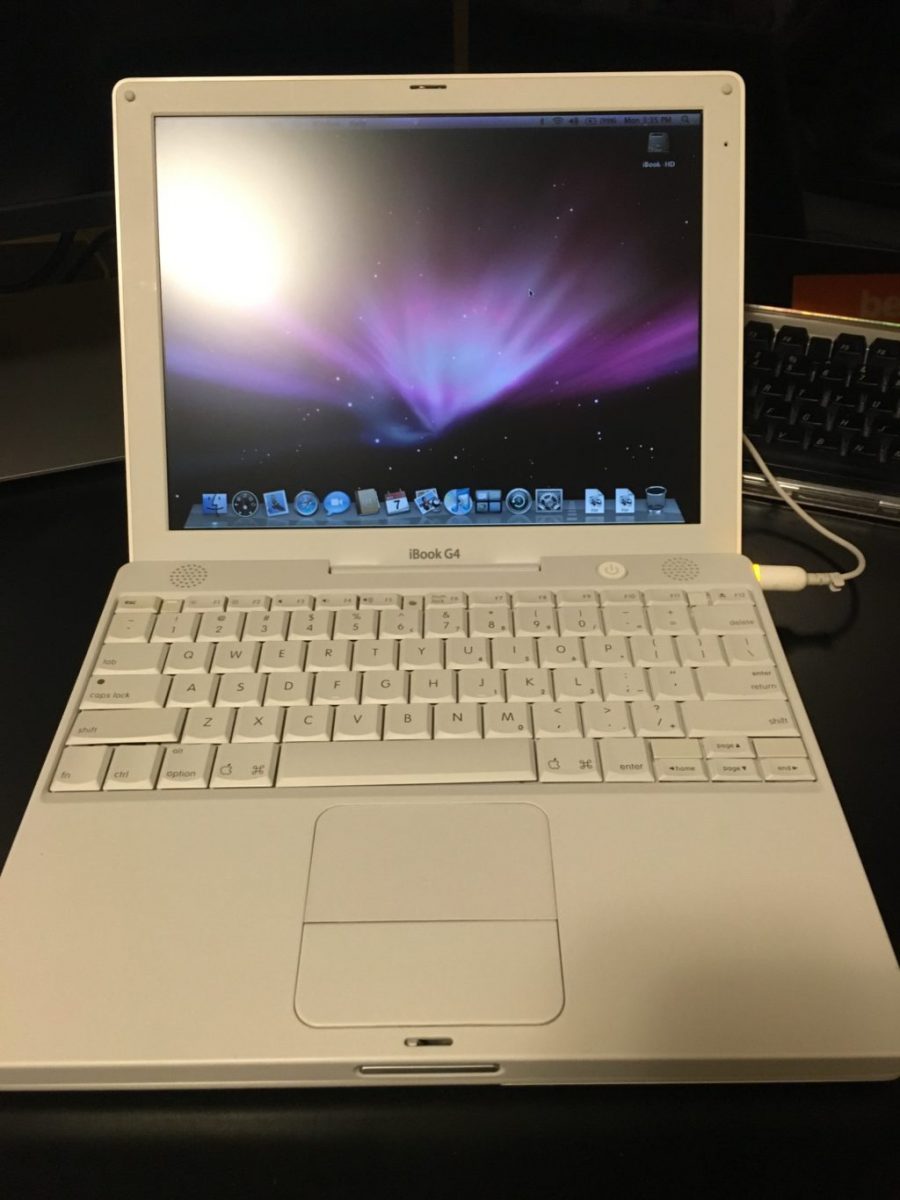
Back in November while I was searching for the iBook G3 clamshell I got curious and was looking up other Mac’s that I might be interested in. I immediately was drawn to  the first Mac that I ever bought, the iBook G3 12 inch in white. I was pleasantly surprised to see this model plentiful on eBay and also relatively inexpensive at about $50-$75 depending on condition. For that price I kind of wanted to buy one. What I ended up searching for and buying was not the exact model that I owned. That was because the advice I was given was that model is prone to issues. So I stayed away from the G3 polycarbonate white and got the last version made in that body type that was a G4. It was harder than I thought to find one that did not look visibly beat up. After a while I did find one in order to.

After getting the laptop the screen feels a little washed out however I’m not sure if it’s this particular computer or if I just don’t remember the screen being like that on those older computers. It’s still very usable and I was happy to see that the keyboard and hand rest was in good shape. I purchased some headlight cleaner from a recommendation that is perfect for cleaning polycarbonate. I haven’t yet however I intend to clean the shell of the computer to get looking in better shape.

As with the G3 clamshell I have specific plans in mind for this computer. It is not just an impulse by to sit around. Now that I have them however I’m not sure if I’m going to swap what I intended them to do or not. I might end up just keeping the clamshell G3 for show since it looks awesome. I would then use the polycarbonate white G4 to do what I wanted to with the G3. Use it as an educational computer for the girls. I have my eyes on my favorite PowerBook of all time. The 12 inch PowerBook that I owned three or four different versions of over the years. If I do get that I would use it as my off-line writing computer that the polycarbonate white computer would have been used for.

As I am slowly preparing to install software on these computers I’m surprised at how much software I saved that is in my backup archive of Mac software that will run on the later variance of OS 10 at work on the PowerPC chips. There is a bunch of things that I’m missing from my latest backup that I have online. I need to go to some off-line hard drives with backups circa 2009 or so to get a few more applications. In any event I should be able to easily do what I want to do with this computer.

Now all I have to do is find time to work on this and other projects I would like to take on.

My Sort of New Vintage Keyboard

In addition to the vintage computers I picked up I also bought an Apple Pro keyboard from the early 2000’s. Over the summer when I bought my wireless Bluetooth mechanical keyboard I did so because I thought fondly of my old black Apple Pro mechanical keyboard. As I was shopping for vintage Mac laptops I started to look for how much a pro keyboard would cost me. Most of the ones I found were pretty dirty shape. The going price was somewhere in the range of $30. I searched around and want to bid on one that looked pretty decent. With shipping I think I paid less than $40. For a good mechanical keyboard that’s not so bad.

When I got it I was eager to tried out. It typed as I remember it did. After using it a bit I did realize that my new Matais mechanical keyboard based on the same movement typed nicer. I found myself able to type faster and more comfortably on that one however the old Pro keyboard is still pretty slick.

I was using the Pro keyboard on my second computer set up for a while at home. A few weeks ago I decided to bring it into the office to use so I can bring home the Matais keyboard. The computer it’s plugged into I delight amounts of typing on however having the mechanical keyboard on it has been an improvement over the newer white and silver Bluetooth Apple keyboard that I had.

My experience with the Pro keyboard versus the Bluetooth Matais makes me want to get a new wired mechanical keyboard. The only issue I have with the Matais is it loses its Bluetooth connection with my laptop much more frequently than I would like. I had many more problems with it than I do with my Mac keyboards. That was one of the reasons why I took it home.

Dual Monitors

Now that the girls are in school full time when the opportunity arises unable to work from home more often. Sometimes it’s a necessity because of the girls being in school and the need to drop off and pick them up in the same day if MC cannot for some reason. Other times it’s just general convenience. Being able to do that has posed new challenges for me. I used to have to hide in my bedroom with a laptop so no matter what I did I was not comfortable. Now I can go to my desk however I don’t like sitting in front of the laptop screen all day. It was a big production to reconfigure my monitor so I can plug my laptop into it to work. My solution was second 27″ monitor so I can have two computers running at the same time.

This configuration solves another challenge I had since I wanted to run a Linux desktop in tandem with my Mac mini. Or sometimes plug raspberry pi into monitoring my desk and work on. With my Apple Cinema Display I’m unable to do any of that since it has the thunderbolt display adapter that limits what computers I can use on it. Amazon had a good deal on a 27 inch Dell monitor. It’s basically the 27 inch variant of the 24 inch monitors I have at work. They’re pretty good so I was confident in buying a larger 27 inch.

Even I measured before I bought it that both 27 inch displays will fit I have very little room on my desk  with both computers set up. Functionally speaking the set up does exactly what I wanted it to. I put my desktop and the cable run for the laptop to a shelf on my desk so I save surface area. When I’m not using my work laptop I can plug my MacBook or a Lenox computer into the second set up. I’m contemplating buying and building a Lenox desktop however  I don’t have the time for that project just yet with a few other projects I have still going on at home.

An Update on The Disembodied Female Voice Called Alexa That My Kids Always Hear Me Talking To

When I last wrote about my Amazon echo I said I would be trying to teach it some smart things commands. Yeah, so I didn’t do that. Since setting up my Logitech Harmony with my echo to turn my TV on and off I haven’t really spent much time with the echo teaching it anything new. I’ve continue to use the echo. Apparently not as much as other people who are very vocal about how awesome it is however I am using it. My use case has become listening to music and checking the weather. Of course the main reason I bought the echo in the first place was I wanted to use voice commands to listen to music and my phone paired with a Bose Bluetooth speaker wasn’t doing that very well. With that fact in mind the echo is extremely successful at what I originally purchased it for

I did have hopes of using it for more than just music. I’m not sure if it’s usefulness hasn’t improved for me because I do not use Google for contacts, calendars, tasks. I also do not currently get my news from the radio or TV. I could see using an echo in my bedroom to listen to news stories as in getting ready in the morning however I don’t see the cost benefit of buying another device to do that specific task. The current echo I have is in our living room and suits its primary function very well in that location.

I could see over time having another device in different rooms however I’m holding back on that partly due to curiosity if Apple will release something to compete against the echo. They likely will however what the product turns out to be is anyone’s guess. And plenty of people are guessing, so I’m not going to. Until Apple makes an announcement I keep reading the weekly updates I get from Amazon on what new tricks the echo can perform to see if there’s any new features that will peak my interest. So far I’m still waiting.

One thing I do want to find time to focus on is ;to see if I can integrate my smart things with the echo a bit. That project however is not on the top of my hobby project list. Of course there’s a lot of specific things I want to do with my smart things that I haven’t done in over a year. Since we want to get a house at some point in the near term investing in any fixed devices such as power or light switches in this apartment doesn’t seem worth the value or time. All this extra integration might just wait until after we move.

It’s A Microphone Not A Speaker, That’s Why I Talk Into It

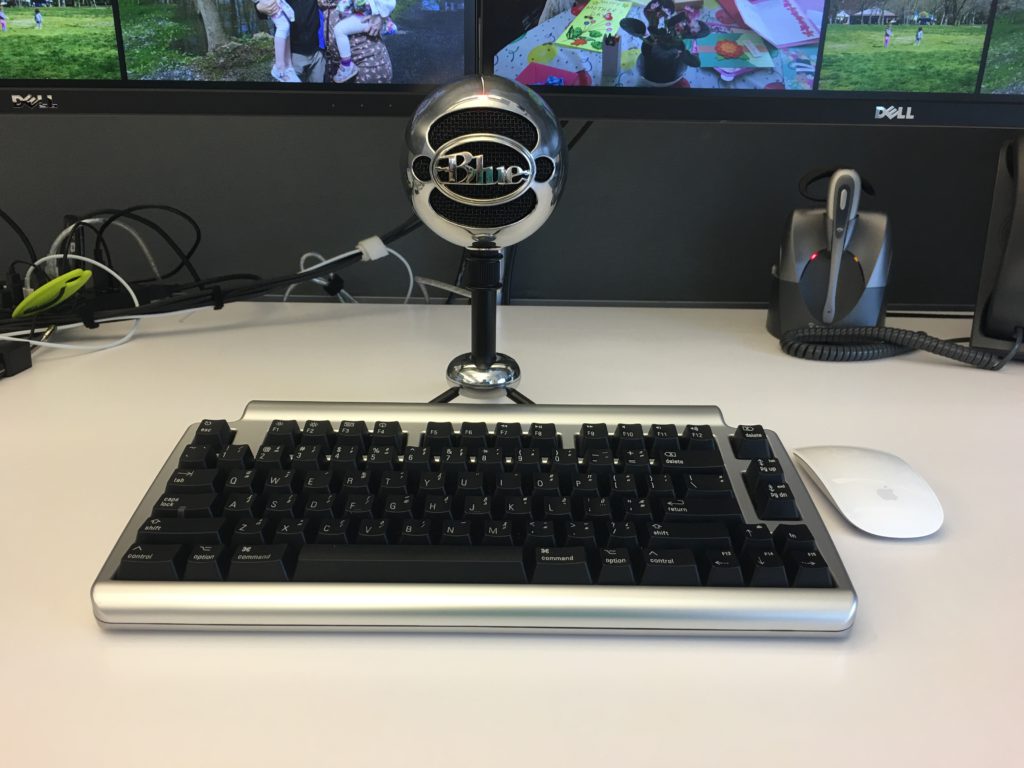
Say hi to Snowball. Pretty much everyone that sits near me believes that this is a speaker. They are usually pretty surprised when I tell them that it is in fact a microphone. I would think the people that immediately sit near me here my dictation however maybe I’m more self-conscious then I should be.

What’s cool about the snowball is that with a keyboard command I can turn on my Dragon Dictate app and dictate something pretty clearly and then turn off the listening mode of DragonDictate. I was hoping for and what ended up happening is that this microphone enables me to use the Dragon software more often throughout the day. Before that I would have to put a headset on and take it off every time I wanted to dictate. That was annoying. I also couldn’t listen to music at the same time I want to dictate anything because I couldn’t have two headsets on at the same time.

A guy at work who was dabbled in blogging owns a better model microphone by the same company recommended it. The reviews on Amazon were also pretty good so I splurged a little bit and picked this mic up a few months ago. I’m glad that I did. It is not as accurate as My headset mic right up against to my face however it gets the job done a lot better than any other alternative.

Anything that allows me to decrease the amount of typing I do, the happier I am. I do find however that for longer documents or messages I need to write I prefer to take my laptop and headset and go into huddle room to dictate. I think that is more around being self-conscious then performance of the snowball.

Overall this was a great purchase.

My New Mechanical Keyboard

I am finding it pretty funny that society in many cases has conditioned us to think new and shiny stuff is better. A few years ago I started reading about getting shaves the old-fashioned soap and a brush. That led me to buying old school one blade safety razors for a time. Since then I’ve evolved to a more expensive and more modern twin blade. My point though is the technology from the middle of last century for me works better than any of the modern stuff. Today I get a better experience with the twin blade and shaving soap and a brush then I ever did with a fancy Mach 3,4, or 5.

Taking that lesson learned I should have come to the same realization on certain technologies. About 9 or 10 years ago Apple released their new style keyboards. It mimics for had a similar movement to keyboards on their laptops. At the time I thought that was the coolest idea that we give me seem typing experience when I work directly on my laptop or when I worked at my desk. The new keyboards were nice and shiny white. The best part was they had a small wireless version was pretty nice size compared to previous wireless keyboards.

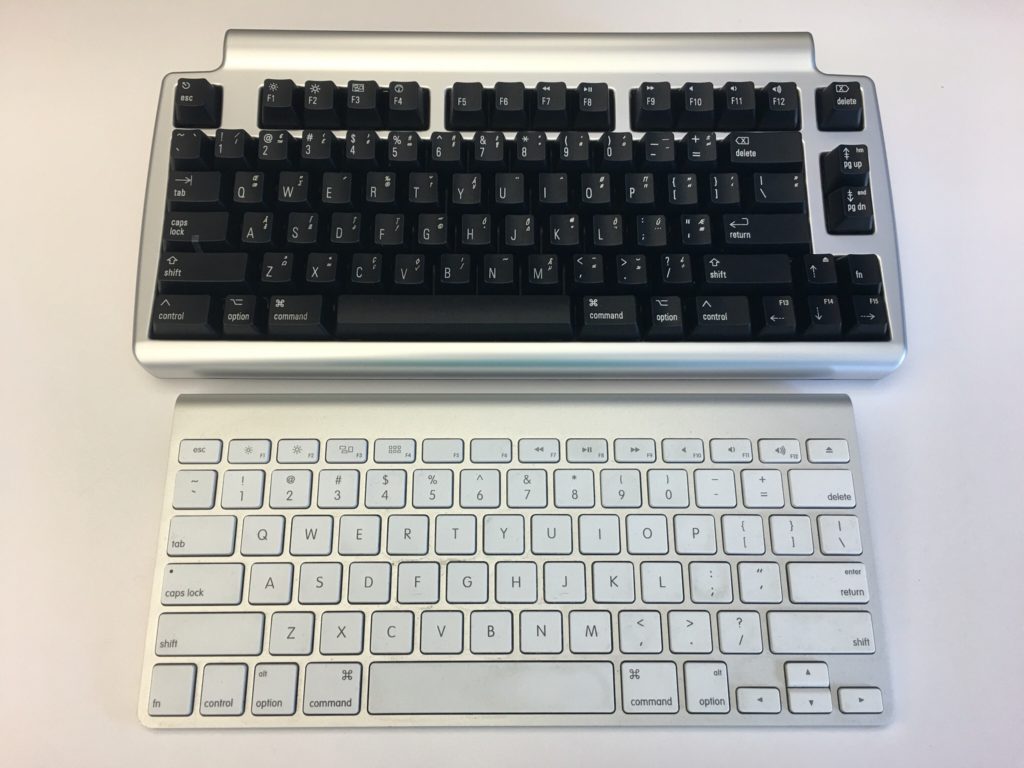
At that time I had been using a White Apple Keyboard 109 Keys A1048.  I wasn’t that impressed with those keyboards and I’m not really sure why I got rid of my prior keyboard the Apple Pro Keyboard (M7803). Those were really good. I think it was related to the fact that at the time I was using an iMac and they came with the white 109 key keyboard. I likely would’ve sold the Pro keyboard when getting rid of a PowerBook. Looking back that was probably a huge mistake. At the time I thought the upgrade to the laptop like sleek mobile keyboard would be a smart move for me.  Even after I had the new keyboards for years I was relatively happy with them.  Flash forward nine years and I saw an article talking about the highlights of a Bluetooth wireless mechanical keyboard that also muffles mechanical movement sound (the Matias Laptop Pro Keyboard for Mac). Even though I was interested, I thought that at the time that I was generally happy with what I had so it wasn’t worth the money.

The idea of the keyboard was still pretty cool yet I was still interested in trying to help my hands make it through the day of typing. I have had repetitive stress issues with my hands on and off for a while. Well I think that’s what it is. Let’s be honest the one Tyler brought up to my doctor he said just rushed her hands and you’ll be fine since the issue seemed very mild.  That being said on some days towards the end of the day my hands feel really tired from the typing. That has been a major driving factor for me to use the dictation.

A few weeks ago the topic came up with someone at work. I think we were either discussing wrist pain or that he was building a vintage computer that the discussion on old-school mechanical keyboards came up. As it turns out he had done a lot of research on the topic and was able to geek out with me on the different mechanical movements of old-school keyboards. I showed him the link to the Matias and we did some basic research on it. Turns out the Matias is based on the same Alpine mechanism that the Apple Pro keyboards were that I liked so much. With that knowledge and a renewed focus on my typing comfort I splurged on the keyboard.

When I first got it I was concerned that it would take me some time to adjust. I’m always worried that during that adjustment. I’ll get set up and just not like it. That leads to returning or not using the device in question. With the Matias keyboard however within an hour or so I realized its value. It felt that I could type faster with it then I was on my old one. It also immediately felt comfortable to use. On both counts I was extremely pleased.

The only drawback I’ve noticed is that I have to tell it to connect to my laptop every morning. It’s more of a minor inconvenience than anything else. There were one or two days in the past month where it didn’t connect and I needed to go into Bluetooth settings and reset it. The only other issue I’ve had is only once or twice there was some lag from when I typed something to when it went on the computer screen. Reviews of the Bluetooth keyboard reported similar issues however it’s not a major problem for me at this point. I like a wireless keyboard over a wired one however if I need to buy another one might pick up the wired version.

Since I do most of my typing at work this keyboard home at present is in my office. It is so much nicer to use this mechanical keyboard versus the new Apple rechargeable wireless keyboard that I have at my desk at home. I bought one of the rechargeable keyboards and it came out since using or chargeable batteries in the old blue two keyboards were pain. They weren’t keeping charges. I was also curious at the time if the new keyboards would be more comfortable to use then the old ones. It wasn’t. I was surprised at how much worse the new one felt to type on. At this point I think I’m gonna save and buy another one for home.

If this was a product review I would likely give it five stars.

A New Mac Mini Please…

My desktop computer at home is a 2012 Apple Mac mini. At the time I got the slightly upgraded version with the fusion drive and 16 gigs of RAM. Four years later it is starting to show its age. For most people it would probably still be a perfectly good computer however there are certain functions I’m noticing I need more power.

I would love to retire this Mini and relegated to act as a backup node on my Bittorrent Sync network. The challenge that I have is that the current Mac Mini model is from 2014. I cannot justify myself to buy a brand-new computer with technology that’s two years old to replace a four-year-old computer. My choices then are either purchasing iMac, build myself a Windows 10 or a Linux machine. My only other option is to wait for the mini to be refreshed.

For me Windows is not practical. I haven’t used Windows as my primary computer for work or professional life in years. I use a Windows computer when I need to at work and I have virtual machines for when I need it however living on one at home day in and day out just doesn’t seem like something I want to do. I have been wanting to build a Linux desktop however today it doesn’t offer me all the software I would need to replace my Mac. The iMac is compelling however I have not been a fan of the all in one computers. I’ve owned several iMacs and had challenges with some of them. Every time I think man those are cool I remember my burn in issues I had on to back to back iMac’s. Other reasons to avoid an iMac is I have been eyeing a bigger monitor than my current 27 inch. I would love a 34 inch widescreen however the current mini I have cannot support the resolution for one. If I do end up getting a second desktop running Linux I would want to plug it into the same monitor. I’m trying to stay is future proof on whatever I buy now as possible.

Since I haven’t been able to come up with a solution I am happy with I continue to wait. Every Apple announcement I hope they will refresh the Mac Mini and then sadly they don’t.

I know the one last option I have that I didn’t mention prior since it is super expensive is the full Mac Pro desktop. The cost alone is a nonstarter for me. Add to that it has not been refreshed as long or longer than the mini makes it not a viable option for me.

As Tom Petty says the waiting is the hardest part. Now I wait some more…

Teaching Alexa New Commands

Tonight I taught my Echo to turn on and off my media center using my Harmony Hub.  I showed MC and she was not impressed.  I am starting to think unless Alexa makes her a full breakfast and delivers it to her in bed she won’t be impressed by what it can do.

I also got the echo to take its own task list items I give it and add it to Trello so it is useful for me.

Next up is integrating smartthings commands.