
The Monitor I Didn’t Buy Yet (and the KVM I Did)

I’ve had dual monitors on my desk for as long as I can remember. There was even a stretch when I was single and had more space where I ran three. It’s the same desk I have today, but back then it had a bridge section making the corner, with an L of extra desk where a third monitor lived. It was nice. A computer for one thing, a computer for another. I peripherate on computers. Back then it was the server, the laptop, the work laptop. Now it’s really just personal and work.

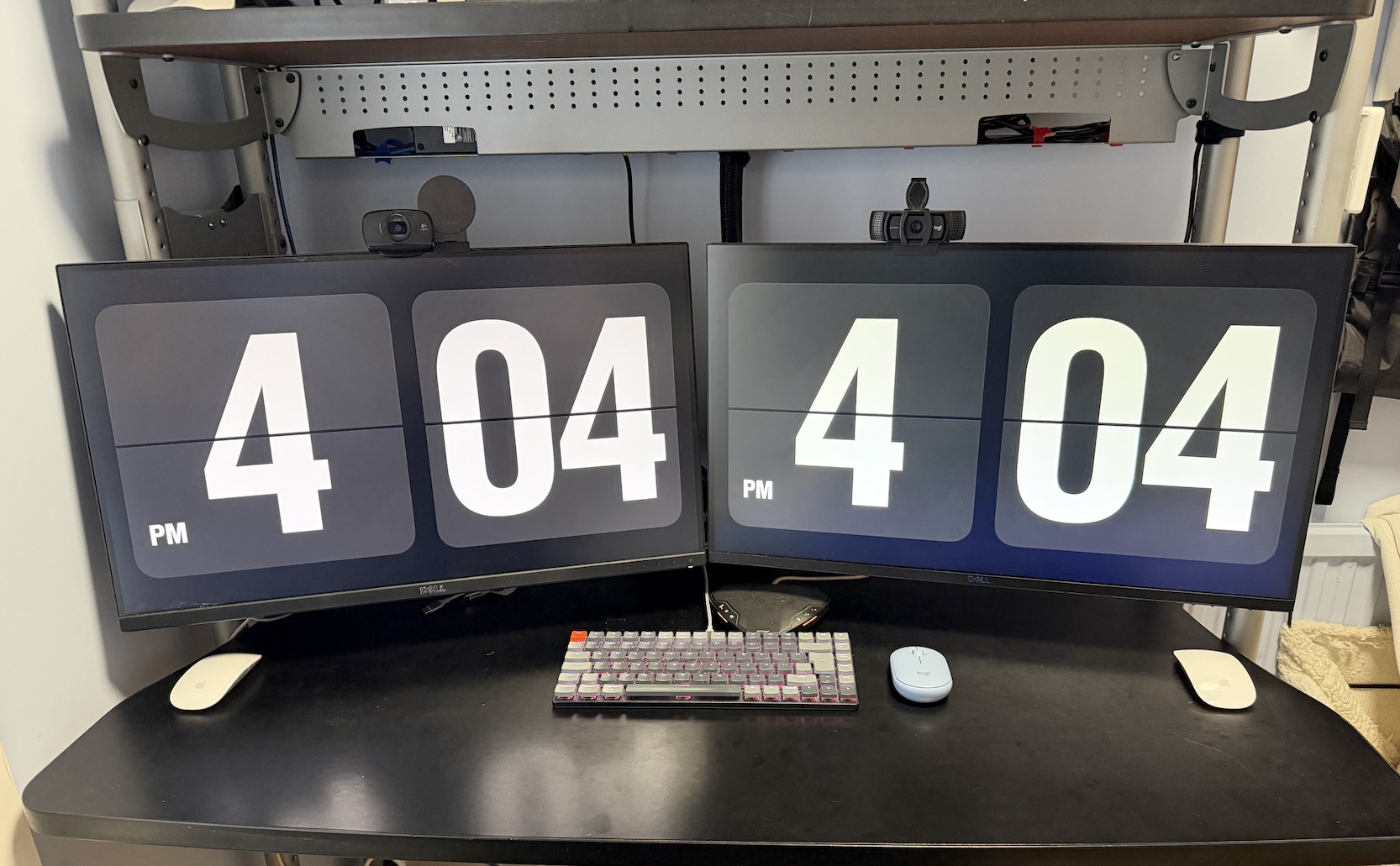
The thing is, I’ve almost always run individual setups. One monitor, one machine. Pivot between the two as needed. Lately though I’ve been eyeing a bigger monitor, partly because the ones at work are genuinely nice. Slightly curved, something in the 30-plus range, not as big as I want, but really nice. I also like the idea of a cleaner desk. In the past I used software to move keyboard and mouse across two computers using two monitors and one mouse and keyboard, but my work machine is locked down tight enough, rightfully so, that I can’t install anything like that. So it’s been two keyboards and two mice, physically. Even with an Ergotron monitor arms keeping both screens off the desk, between the monitors, the keyboards, and the speakerphone, it gets cluttered fast.

So I’ve been paused on the bigger monitor for a while. Partly because the one I actually want, the largest decent one that fits my space, costs more than my last computer. I’m hoping the price comes down, or I talk myself into something cheaper, but that’s only part of it. The bigger part is that because it’s so expensive, I don’t want to just pull the trigger and end up unhappy. Unhappy in the sense of: do I actually want single-computer focus, or do I want the ability to pivot between two things running at once? Historically I’ve always liked the pivot. I’ve had KVMs around for probably 25 years, going back to a four-port one on part of my desk at work and a dual one on another when I was building systems. Not something I do now, but clearly that’s foreshadowing where this goes. My kids actually asked me about all this while I was setting it up, which was a fun tangent.

So the thinking became: if I’m not sure the big single monitor is worth it yet, is it worth getting a proper KVM instead and using both monitors I already have, just switching computers on the fly? I’ve tried the manual version of this before, switching monitor inputs by hand between the two computers, and it’s a nuisance. Not fast. Basically a one-time decision each morning (this monitor goes to work, that one stays put) rather than something you casually flip back and forth on, because you’re waiting a minute or two for the input to catch up every time. A KVM is just press a button and it switches. That was the appeal: I don’t need both computers live and visible constantly, but if I need ten seconds on the other one, I can jump over and jump back.

I did the research (with some help from Claude, since I had a pretty specific use case) because both computers are MacBooks with different video requirements: a MacBook Air at home, a MacBook Pro for work. I’ve also got two docks in play, a Dell Thunderbolt Dock WD19TBS for my personal machine, plus a USB-C extender with HDMI I’d been using, and an old Dell D6000 dock from work I could put back into service. I had to give the AI very specific details on exactly what hardware I had, and whether it would actually work together. It came back saying one of my docking stations might be problematic and flagged some KVM models and brands worth looking at. I settled on a TESmart DKS202-MC24, found an open-box unit on eBay about £120 cheaper than new, and also picked up a used Dell WD22TB4 dock, a newer generation than what I had, on the theory it would fix a potential DisplayPort driver issue with my existing setup.

Everything arrived last week and I set it up. The MacBook Air side gave me trouble right away: instead of extending across both monitors, it just mirrored them, which isn’t how it’s supposed to behave. Not entirely sure if that’s on the docking station itself or something about how the KVM sits in between it and the Mac. Either way, the fix was to stop routing that monitor through the dock. That port wasn’t actually spare, I had a mini YubiKey plugged into it, so I moved that over to the dock to free it up, then ran a Thunderbolt to DisplayPort cable I already had lying around straight from the KVM to that monitor instead. Now I’m running two cables: one to the dock, one direct. Not elegant, but it works.

Side tangent I keep circling: I’ve been wondering if I actually want a Mac mini instead of the MacBook Air, even though the Air is fairly new. I’ve been using my iPad more, and I’d rather have a fixed machine at the desk for the remote AI sessions and similar work, which points toward a mini rather than a laptop I’m not really using as a laptop. If something happened to it, we do have an older M1 MacBook Air the family keeps around that my wife barely touches and the kids ignore in favor of their iPads, so there’s a fallback. But that’s getting ahead of myself. For now, the Air setup functionally works. If I went with the Mini I wouldn’t have this dock in the middle of the configuration.

The work side had its own flakiness. Even with the newer WD22TB4, the second monitor doesn’t always get picked up. Same fix: I plugged one monitor directly into the MacBook Pro instead of routing it through the dock. The Pro has more ports to spare, and I wasn’t using that second one anyway, so it’s a reasonable cheat. Both monitors work now. The WD22TB4 kept being just flaky enough, though, that I eventually gave up on it entirely and went back to the D6000 as my daily work dock, with the WD22TB4 sitting unused for now.

Even without any special software, the keyboard plugged straight into the KVM switches between the two computers with a keyboard shortcut, seamlessly. I’m using a Keychron K3 Version 2 wireless keyboard, UK ISO layout, but I’ve got it wired in for this to work, which mildly annoys me since the whole point of that keyboard is Bluetooth. Except this isn’t actually new: even in the old two-computers-two-monitors setup I just left, I had two of these same keyboards wired into each computer anyway, because Bluetooth took too long to wake up whenever I came back to the desk. So wired was always the practical answer, I just needed two cables for it instead of one. Now there’s exactly one keyboard cable on the desk instead of two, which is basically the only real cable left.

Mice are messier. I like Apple’s Magic Mouse, but they pair directly to a computer over Bluetooth, which won’t work with a KVM. I’ve got a Logitech Pebble mouse that does switch between the two machines through the KVM via USB, but I’m not a fan of how the scrolling feels on it. So for now I’m still running two mice on the desk and slowly trying to wean myself onto the Pebble full time.

The end result, though, is pretty good. I’ve been living with the dual-monitor-plus-KVM setup for both work and personal use over the past couple of days. It takes some adjustment, figuring out the habit of what lives on which screen. But so far, so good. I’m hopeful enough about it that I still picture eventually moving to a single unified monitor, which would simplify all of this considerably.

The catch there is that as much as I’d want the monitors closer, they’re honestly already too close because of the metal shelf poles running above my desk. It’s all one unit, so if I pushed the monitors back to give myself more room, the poles would start blocking the view. The monitor I’ve been eyeing, which is by no means the biggest one I actually want, just the biggest that fits my space, would fix some of that and let me adjust things properly. I’d originally wanted something that matched the exact real estate of my two current 27 inch monitors combined, but that simply won’t fit on the desk. And now that I’m actually living with these two side by side, I’m realizing I don’t really use the outer quarter of either screen anyway, since it means pivoting my whole body to see it. So the smaller monitor I’m looking at, and by smaller I mean still around 40 inches, is probably plenty. That’s a topic for another day, if I actually pull the trigger.

For now, so far so good on the dual monitor KVM setup.

And if you read this far the time of 404 was not at all intentional.

The New MacBook Air

This week turned out to be a two laptop week.  I was already thinking about selling my existing 2010 Macbook Air and upgrade to the new i5 2011 Air’s that just came out in July  when I convinced M to order a new Macbook Pro but I finally pulled the trigger on the new Air today.

I was waffling for a while since the 2010 model is still perfectly good.  The big drawback for me was the processor wasn’t anywhere near a desktop or even a bigger laptop’s speed.  That changed when the new i5 Air’s came out.  After figuring how much i could sell my old Air for i decided to make the jump and upgrade.

I have bought lots of stuff at the 5th ave Apple store but today was actually the worst experience i have ever had there.  It was super crowded and it took forever to find someone to help me, only to have them tell me oh you need to find a free computer and tell the ipad sitting next to it you need assistance and then you will go into queue to get help.  Problem there is everyone is on these laptops for hours surfing Facebook and two no one tells you that is the process.  I have bought more than one computer from this store and this is the first time i have ever had to do that.

Drama aside i was able to get the model I wanted and headed home.  Well after more minor train drama i was able to get home but that is another story.

I had already taken a backup of my old Air using Carbon Copy Cloner so setting up this computer was as simple as plugging in the backup hard drive and saying yes restore from an external hard drive.  For that function alone i have to love Apple!


Spring Cleaning with Ebay

Yesterday I sold my Nokia E71. I know, I use an iPhone 3G. I also bought a E71 a few months ago to play around with. I was hoping to be able to switch between iPhone and E71. I know, I bought and returned a previous Nokia E71 for that same reason. I wanted to give the Nokia more than a day trial. The verdict was it is a great phone but even with its drawbacks I like the iPhone and even when I did use the E71 I would often switch back to the iPhone. So since I am currently on a sell my extra stuff kick I sold the Nokia on Craigslist.

So far in the past month I have let go of my Macbook, and the Nokia. I loved the Macbook, but the reality was I wasn’t using it so I opted for the much faster iMac desktop. I am even contemplating letting go of my HP netbook since I have my work laptop that is an ultra portable. I am also looking to offload my 160gig iPod. When I got the iPhone I thought I would slowly stop needing an iPod. That is exactly what happened. With my new 16gig USB key and 16gig SD card in my laptop I no longer need the 160gig iPod for any portable file storage. That means it is getting wiped and put up for sale.

I am also in the process of selling my old Airport Extreme base station, but that is only because I upgraded. That sale will recoup half the cost of the new one. Man ebay you are my enabler for buying new stuff!

What I am not selling is my old 23″ cinema display. It found a new home as my second monitor on my iMac. I need to rummage through my storage bins to see if there is anything else I want part with. Don’t you smell spring cleaning in the air.

The New New iMac

Last Wednsday I broke down and ordered one of the new iMac’s that were announced on 3/3. This was both a planned and impulse purchase at the same time. It was an inpulse purchase since I wasn’t planning on taking any action just yet, but I had been planning getting something. My issue has been that for about a year I have wanted something bigger than the 23″ Cinema Display I had. I deffered purchase for months because none of the computers I had could power such a display. Then I got a new Macbook in November that could power the 30″ display. I didn’t go right out and buy one since first it is an expensive piece of hardware, second the adapters to power the display on the Macbook were backordered. By the time the cable was availible the big rumor was (and still is) that Apple will announce new displays. So yet again I waited, until they announced new iMac’s. Now I was torn on what to do. Do I spent allot more and get a huge display but have a slower computer, or go for the all in one really fast computer?

The answer has always been for me to go modular. Get a laptop, KVM and maybe a desktop. I actually owned several iMac’s since I started using Mac’s. Each time I ended up selling them or returning one of them because I wanted more options than an all in one offered. So as I write this post from my new 24″ iMac I have to wonder, did I make the same mistake in buying an all in one again for the 3rd time? My own answer to that question is I am not sure, but I hope not. The reason I think now is the time for a nice fast desktop is that since last year when I hatched my plan for wanting a larger 30″ display my situation has changed slightly. My previous jobs have not cared if I used my Powerbook or Macbook. Partsearch even bought me a Macbook Pro to use, so I was always using the same machine at work and home. That made sense that I had a desktop setup at home that accommodated that. An all in one computer didn’t really do that. My current job issued me a windows laptop. Now I am hearing that I can probably do a non standard build and actually use a Macbook, I haven’t really wanted to test that theory. That means I keep my work and home computers separate. This is the first time in years that I have had to do that. Since I bought my latest Macbook in October it has been used off of its stand maybe 4 times. That for me was the deciding factor that I don’t need a personal laptop. For the times I want a portable that is not work issued I do have the netbook.

So I made my decision. I went with the all in one iMac. It is fast, and at some point when RAM gets a bit cheaper I can fill it with 8gig’s of memory. My Firewire 800 Drobo is plugged right into it, and it is FAST! For now I think the added cost and slower computer that would be used didn’t make the 30″ display viable for me. If money was no object I would of course go for a Mac Pro, but unfortunately it isn’t.

For now I am very happy with my choice!

Its a Netbook

I tried out an Asus eee 10000H back in August. I wasn’t a huge fan. The keyboard was too small and the battery layout was a bit awkward. Those reasons and the fact that at the time my main use for it was minimal I ended up selling the eee PC to Jayson. He loves it and uses it every day on the train to and from work.

With my new job I have had more of a need to have a really small computer that I can throw in my bag for chat and emails when I am out and about. The Thinkpad T61 from work is great (for a windows machine) but it isn’t so great to carry around unless I am going to and from work. For that reason I went back to looking at Netbooks. I looked at the Dell Mini 12, and the HP Mini 1000. The Dell wasn’t available to ship until January (come on dell) and I wasn’t sure if the 12″ netbook would be too big. That was my dilemma. I want a small machine, thus looking at a netbook in the first place, but I also have bad eyes. I want the biggest screen i can get. I think the Dell 12″ would be borderline too big. The keyboard on the HP Mini 1000 also got fantastic reviews for how good it was. I also looked at the Macbook Air. It was still light even though it was physically bigger than the other netbooks I was looking at. The Air did have a 13″ screen. The final deciding factor not to get the Air was price. It cost more than my regular laptop.

I opted for an HP Mini 1000 with a 60 gig hard drive and bluetooth from Amazon.com. Amazon Prime is great. I ordered the computer on Friday and for $3.99 it was at my house on Monday. Along with the Netbook I also picked up a Verizon Aircard for internet anywhere. I opted for the USB dongle device. I could have gotten a built in card for the mini but I wanted the option of using the device on my Macbook or Thinkpad also. So far the combo has worked out. I took the HP to work yesterday and got great signal on the Verizon Broadband.

I have yet to try out office or any real intense applications on the computer yet. One of the guys on my team did try loading videos from YouTube yesterday and said it worked great.

I am giving the computer a run for its money this week when I take it as my only computer to Jayson & Gretchen’s for a few days.

Read more

How Some Hardware Companies Can Confuse Their Customers

I wonder sometimes what Technology companies are thinking sometimes. A few months ago I bought a Microsoft Bluetooth Notebook Mouse 5000 to use when traveling with my Macbook. It is a good portable mouse. I had no real complaints about it. That is why when I needed to use a portable mouse with my Thinkpad T61 I wanted to configure the mouse for use with it. The Thinkpad has bluetooth. That is when my problems started.

It turns out that the Thinkpad does not have the control panel option for Bluetooth even though the driver is installed and working. Some forum searches later and I discovered that this is unfortunately common for SP-2 + installs of Windows XP. I can’t really setup a bluetooth mouse without that control panel applet. I then figured I could download the latest Microsoft drivers and mouse software for the Notebook Mouse 5000. I was hoping that maybe I could configure the mouse using the Microsoft Mouse software. This is when things got interesting. When I went to Microsoft’s Hardware site to download the drivers I couldn’t find the mouse I own in the list. I verified that I have the right mouse type and I still couldn’t find it anywhere on the Drivers & Download page.

I then decided to search the internet for references to drivers for this model mouse. After about 15 minutes searching I found several references to the same problem I was having of not finding the drivers. One of the posts was actually on a Microsoft Forum. The answer blew me away. Yeah, there aren’t any drivers to download. According to someone who seems to be working at Microsoft said that since it is a generic Bluetooth Mouse there is not specific driver set for this model. My response to that is, oh I am sorry that I the end user didn’t know that. How can you expect a consumer to figure that out? You sell someone a product but when you can’t find that product listed on support and download lists it is kind of frustrating. I can understand that I don’t need a driver or special software for the mouse. Wouldn’t it have been a good idea to have this model in the list of models to choose from on the support site and when you select it you get a notice about not needing to download anything special for it? Come on Microsoft you can do better than this.

In the end my problem is still not solved since I don’t have any way to pair the mouse to the Thinkpad. Lenovo hasn’t been very helpful either. I am still working on the issue but I thought my little story was odd enough to take a few minutes and write about it

My New Monitor

After searching far and wide for a good deal on a monitor I ended up ordering a Dell 23″ LCD. I got a nice discount and it was the right size for me. It also offered DVI & VGA inputs. I got it yesterday and it looks great on my new computer table add on. I am finally using Outlook the way it was intended (full screen with a nice big 3 pane setup so I can see everything).

Now all I need for the perfect computer setup is a better mouse and keyboard for my Thinkpad. I just got a Microsoft Wireless Laser mouse for my Macbook and it is really nice. Moves really smooth. I might get another one for the Thinkpad, but I can’t figure out what kind of keyboard to get. I love the Apple Wireless Keyboard I use on my Macbook, but I don’t think it will work with a Windows machine.

The Weirdest Technial Problem

On 2nd I wrote about a weird issue regarding my iPhone resetting. Unfortunately since then the issue happened on two other occasions. By the 3rd issue I decided to call Apple and open a ticket on my problem. They couldn’t help me much on the phone so they wanted me to bring the phone in and see someone at a local Apple Store. This is when things get interesting.

A few days before the 3rd incident with my iPhone I noticed that one of the external USB drives I have threw an error when I booted up the Macbook. I was bad and kind of ignored the error since I could see the drive mount and didn’t appear to have any issues. After a few reboots with the sam error I actually read the error and noticed it was warning about a corrput file system. Since this drive was a backup drive and only used as an archived copy of data I didn’t need the data I decided to pull the drive and use a spare I had. The next time I rebooted my computer Sunday night I got the same error, but this time it was on another 750 gig USB drive I had plugged into my Macbook. This time the error was on a drive that I do use and have critical data on. I was not hugely worried since I could still read the data on the drive. I decided to copy the critical data off onto another 750 gig drive that I decided to use as a mirrored copy of the data on the first drive.

Once I moved all the data off of the damaged drive, I formatted it and prepared to mirror all the data on the 2nd drive back over to it. I started off a replication of the good drive using Synk and then went to bed. This was the same night I called in the iPhone for support. I woke up the next morning to find that my Mac had crashed and never copied very much data. Once I rebooted my Macbook I noticed that the one good drive I had was now not visible in OSX. I checked the disk utility and I saw the drive but it was not available. A verify failed telling me the file system was messed up. I began to panic a bit. All my efforts to create a good backup process ruined by some weird fluke issue. At this point I had to take my Macbook and goto work.

After work I went to the Apple Store on 5th Ave and told the Genius Bar guy my woes. He looked over my iPhone and then my Macbook. After explaining what happened to my USB drives they decided that I can hold onto my iPhone but that they want to take my Macbook in to run some tests on.

Now I am without my Macbook, my iPhone works but has no media on it. I was instructed to reset it again, but not restore it. I am waiting to do that when I get my Macbook back. I can’t install anything without all the data on it. After a bit more panicking about the lost data on my hard drives I am feeling a bit more optimistic. I am using Data Rescue II to pull the data off my bad drive. It is taking ages to copy but so far I have been successful. I am about 70% done with my restore. I think the most critical data is already restored onto my good drive. Once I am done I will format the bad drive and mirror the data back over to it. I will then do what Jayson does and physically unplug the backup drive and sync it every week or every other week. Longer term I am looking to get another Drobo or some sort of other solution that does some sort of RAID.

While I wait for my Macbook to return I am not off the Grid. I am using my iMac I typically use for TV, and I have my work Thinkpad.

iPhone 3G Reset

My afternoon today was thrown for a bit of a loop when I tried to go out today and tried to play some music on my iPod. There wasn’t any. That was odd since I always have about 8gigs of music on it. I then went to sync it up again with my Macbook. That is when things got interesting. I kept getting an error saying the phone couldn’t sync and I had to reset it. I figured a quick reset and I should be good to go. Well that didn’t work either. I reset the phone and then it kept giving me an error. I couldn’t sync it, or boot it up. An Apple KB article said to reboot the computer so I did that. After about 3 more tries the phone reset and started restoring.

This is the problem with one converged device. I almost can’t go anywhere without it. It is my phone (only one except Skype until I get my blackberry from work). It is also my music player, and PDA. I am sunk if it doesn’t work. Today was a perfect example of that. 3 hours later I am back and semi running with the phone. My only lingering issue that I know of is my icon’s are all in the wrong order. I am more concerned with the fact that I don’t know if this will happen again, and I have no backup plan. I guess that is my operations mindset going. I always need a “plan B”. I am thinking about that, but for now I am just happy things turned out as well as they did. It could have been allot worse!

13 Days With an iMac

As my bad luck would have it I went out and bought a 24″ 3ghz iMac the weekend before the announced the new Macbooks. Now I admit I knew they were going to announce new laptops. It wasn’t really a secret. At the time I had given up hope that Apple would come out with a regular Macbook that could use their 30″ displays. I gave up on an affordable solution to have a 30″ display. I wanted the display but didn’t need the Macbook Pro, or Mac Pro that I would need to own in order to run the display. Since my new job gave me a laptop that I need to use for work I didn’t really need my Macbook as much so I settled on the cheaper option of the iMac. I gave up on the larger screen but got a more powerful desktop.

So when the new Macbooks came out and could solve my original requirements I was not happy. I had already owned the iMac. This was of course the week I was out of work sick. I was contemplating selling the new computer for a loss on ebay and just getting the Macbook. I didn’t realize that I could return the iMac to the Apple store and just pay the high restocking fee. I opted to pay the restock fee since I could never sell the computer for what it was worth. I returned it with 1 day to spare on the 14 day return policy. I went ahead and picked up the low end aluminum Macbook. I thought about the more expensive one, but the hard drive space wasn’t an issue. My extra $400 would get me 400mhz in processor. As much as that would be a nice boost, it wasn’t worth the money. Instead I spent a little over $200 and upgraded the unit to 4gig’s of RAM and put in a 320gb 7200RPM hard drive. For less money I than buying the higher end laptop I think I speed up the unit more by getting a better HDD and RAM.

I just finished upgrading the new hard drive today. It was a as simple as running Carbon Copy Cloner on my old drive to a USB drive. Then I booted to the USB drive after installing the new 320gb drive in the laptop and ran CCC again in the reverse direction. The process took several hours to copy the data, but only required my interaction for a few minutes. When I was done my entire computer was cloned onto the new hard drive. I could never do something that cleanly with Windows, trust me I have tried over the years.

The only downside to note is yes I can use a 30″ Cinema Display with the new Macbooks, however the cable that will allow me to do that is not yet available or backordered that it will take several weeks to get. That means I am still on my 23″ display until I can get the cable and buy the new display. Why is going from 23″ to 30″ so important? My eyes aren’t the greatest, so the more screen that I can get the better!

Technorati Tags: , , , , 30″ Cinema Display