
AI Setup Evolution

I’ve been writing a lot about AI and tech projects lately, which makes sense since that’s the stuff that ends up on this blog. It isn’t all that’s going on in my life, just to be clear. But my AI setup has quietly evolved in August and September in a way that’s letting me undo a bunch of stuff I only built because of the cloud AI’s limitations, so here we go again.

First, the accounts. I’ve been using Claude a lot more than any other AI system lately, but I’m still mixed between Claude and ChatGPT for coding work. Instead of paying for Claude Max or the equivalent top tier ChatGPT plan, which run about five times the price of the regular subscription, I pay for two mid tier plans instead, the Claude Pro and the ChatGPT Plus. Partly that’s so when I run out of tokens on one, I can switch to the other. But that’s a small reason. The bigger ones are that if one gives me a bad answer, I want to try the other, and sometimes I want a second opinion and will ask both the same question. I also don’t think I’d actually use five times the usage, so paying for the bigger plan on either one would just mean I’m not getting my money’s worth. There are times I max out both in the same stretch, so maybe I am doubling up after all. Who knows.

Interesting side note, I’ve been leaning on Codex more for coding lately, with a bit of chat here and there. I like their interactive audio, though I don’t use it as much as I probably hold onto the idea of using it. I’m building sites and things with Codex now, not because I think it’s better, I started because a friend recommended it after I hit a specific wall with Claude. I still use Claude for coding too, but I keep them separate on purpose. Coding work tends to run a project’s token budget down fast, and I don’t want that eating into the day to day chatting I do in Claude. The coding side is pretty interchangeable between the two since everything gets saved locally to wherever I’m working anyway.

Now, the actual problem I’ve been solving. With ChatGPT, and then Claude once I moved to it, the challenge was always context. Take my car tracking prompts as an example. It’s one of many, holiday planning is another, so is tracking the general inventory of stuff I own, but let’s stick with the car since we’re actually replacing it with another used one right now. I’d feed it a lot of detail about the car, our usage, our spending, all of that. Then every new chat, I wanted it to already know the context, how to respond to me for that narrow kind of conversation. So I had some generic prompts, plus a very specific auto inventory prompt, and I’d load all of that into a fresh chat every time.

Then there’s the data itself. Registration, MOT dates, how much we paid for the car, fuel spend over the last couple of months. All stuff AI is genuinely good at trending and drawing insight from, and useful for research too. But I needed to save it somewhere. My old process was to have the prompt itself describe how to save the data, which in most cases meant getting the AI to structure everything into a JSON file I could download and keep a version of.

The problem is I don’t want to keep an indefinite chat going, especially with Claude, though ChatGPT has some of the same issue. As a chat gets long, the AI starts forgetting the earlier stuff and compacts it, and it even warns you this is happening. I wanted everything solid enough that if I deleted that chat and started fresh, the new one would already have everything the old one had.

So the prompts were only half the system. The other half was the JSON, or a CSV for a pure inventory file, sitting there holding the actual data. I built one of these little systems for the car, one for holiday planning, one for holiday budgeting, a stack of them, each with its own context switch. It worked, but it meant a real proliferation of chats. Start a chat, load the data, double check which version of the file I was working from, and when I was done for the day, have the AI spit out a fresh JSON with a version number in the filename and save it to disk. I ended up with thirty or forty versions of some of these files sitting around. Not done with the topic forever, just done with it for that session, so I’d save and move on, and next time load the latest one and keep going.

That whole dance existed because neither Claude nor ChatGPT could write to a file in its own project folder, only read from one. I could load something into a project, but I couldn’t have it write back out to that same spot. That was the actual limitation driving all of it.

Then, much more recently, within the last month or so, Claude’s Cowork got a lot easier to use and a lot more functional. It’s mid September as I’m writing this, and just yesterday I read that they’d simplified the interactions with it even further, which is great timing for me. With Cowork, I’ve gone back through each of my little systems and rewritten the prompts. Now I can just tell a new chat to look at a directory on my computer, read the markdown file with the instructions, read the JSON, and write straight back to that same JSON. No more versioning gymnastics on my end, because I don’t need to care about it anymore. Time Machine on my Mac is already snapshotting everything hourly and backing it up elsewhere, so the versioning is handled at the file system level, which is where it belonged all along.

I still keep these as separate projects in Claude, because I want specific context tied to specific folders on my computer. My car information lives under an auto folder inside a broader life inventory folder, my computers have their own folder, my domain names have theirs, each with its own markdown for how I want it handled. In the past I’d have to manually load the data file and the instructions file into Claude every single time I started up. Now the project just has a tiny instruction pointing to a markdown router, a file in the root directory that lists out all the different contexts I’ve got and where to find the detailed files for each one. It knows to go look in those folders, and inside something like auto, it’ll find an instructions markdown, the data file, and whatever else belongs there. I can start one omni chat for anything life inventory related, or a specific car chat, and either way it’s not my job to keep the local files in sync anymore, because that’s just handled.

For a while I could already do a version of this on my own computer in a coding session, but not from the cloud, not from my phone on the couch, or my iPad while we’re figuring out where to go for dinner or nailing down holiday plans. Now with Cowork, I can start a session that runs as long as it needs to. I don’t care if it compacts and forgets things partway through, because all the data that matters is already saved to a file, and it’s got a remote session into my actual computer at home.

In another post I mentioned why I might end up getting a Mac Mini instead of relying on my MacBook Air, and this is exactly why. If I take the laptop with me, none of these sessions work, since there’s no computer at home to remote into. I’m fine with a dedicated home machine for this, because lately the only reason I’ve been taking a laptop anywhere has been to do AI stuff with it in the first place. It’s a bit circular. If I can run everything through a remote Cowork session back to a computer at home, I don’t need to bring a computer anywhere at all.

I’ve been going on holiday without a computer for a while now, aside from that one AI use case, to the point where I’ve packed the laptop a couple of times telling myself I might need it, and then never actually taken it out of the bag. My 11 inch iPad Pro has become my go to screen for everything, and this new Cowork setup makes that even more true than it already was.

So that’s where things have migrated to for now, and we’ll see how it keeps evolving. Ideally I’d love to get to a point where I don’t need a home computer in the loop at all and can just use remote storage instead. But I don’t use a mainstream service like Dropbox, OneDrive, or Google Drive, which is probably where that kind of direct read and write access would actually get supported first. Last I checked, Google at least would let you read from those places but not write back to them. When that changes, it’ll be worth revisiting, but for now I’m sticking with my own storage.

That’s the state of the AI setup as it stands. Check back in a couple of months to see how much of this I’ve already torn apart and rebuilt again.
The Monitor I Didn’t Buy Yet (and the KVM I Did)

I’ve had dual monitors on my desk for as long as I can remember. There was even a stretch when I was single and had more space where I ran three. It’s the same desk I have today, but back then it had a bridge section making the corner, with an L of extra desk where a third monitor lived. It was nice. A computer for one thing, a computer for another. I peripherate on computers. Back then it was the server, the laptop, the work laptop. Now it’s really just personal and work.

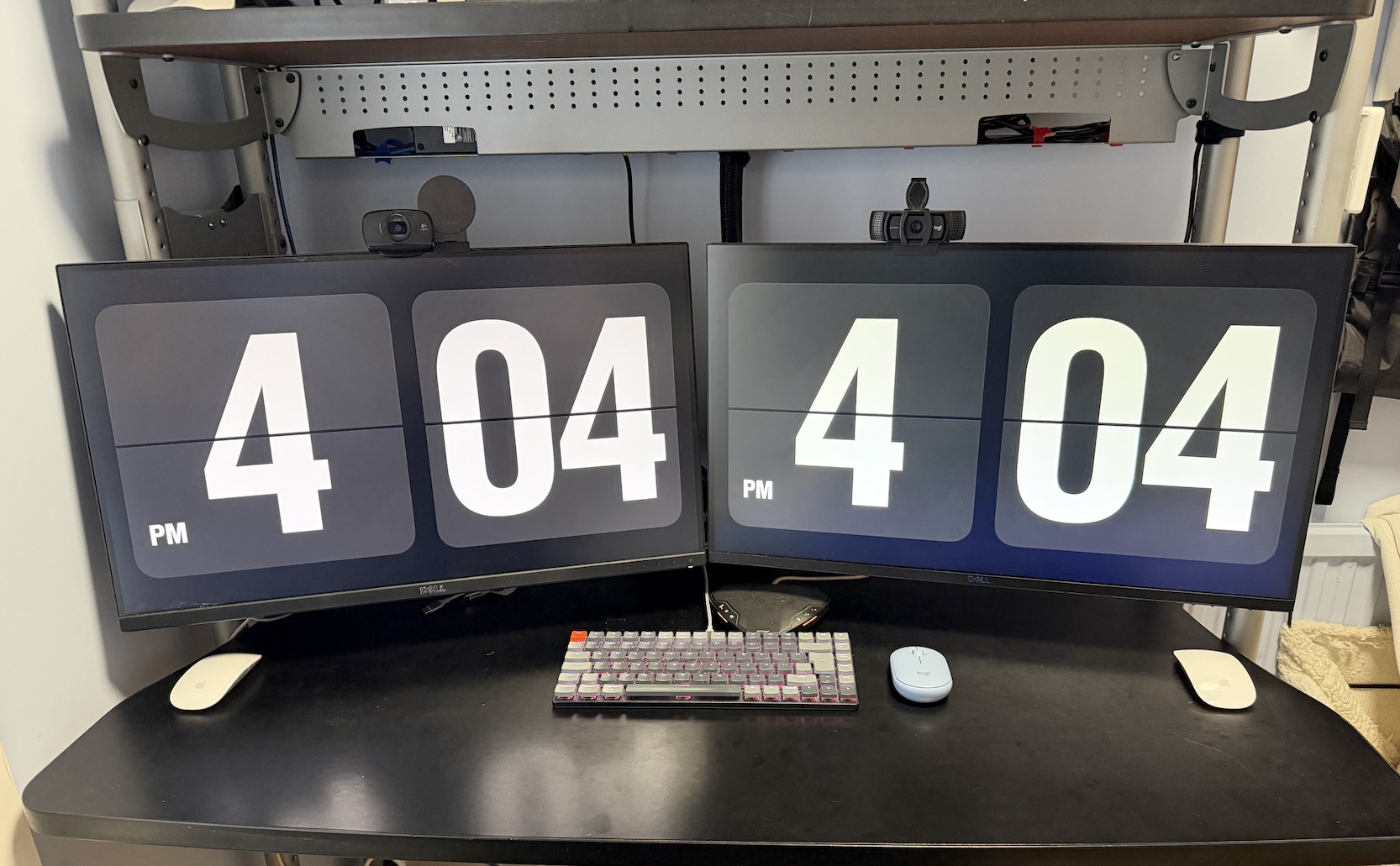
The thing is, I’ve almost always run individual setups. One monitor, one machine. Pivot between the two as needed. Lately though I’ve been eyeing a bigger monitor, partly because the ones at work are genuinely nice. Slightly curved, something in the 30-plus range, not as big as I want, but really nice. I also like the idea of a cleaner desk. In the past I used software to move keyboard and mouse across two computers using two monitors and one mouse and keyboard, but my work machine is locked down tight enough, rightfully so, that I can’t install anything like that. So it’s been two keyboards and two mice, physically. Even with an Ergotron monitor arms keeping both screens off the desk, between the monitors, the keyboards, and the speakerphone, it gets cluttered fast.

So I’ve been paused on the bigger monitor for a while. Partly because the one I actually want, the largest decent one that fits my space, costs more than my last computer. I’m hoping the price comes down, or I talk myself into something cheaper, but that’s only part of it. The bigger part is that because it’s so expensive, I don’t want to just pull the trigger and end up unhappy. Unhappy in the sense of: do I actually want single-computer focus, or do I want the ability to pivot between two things running at once? Historically I’ve always liked the pivot. I’ve had KVMs around for probably 25 years, going back to a four-port one on part of my desk at work and a dual one on another when I was building systems. Not something I do now, but clearly that’s foreshadowing where this goes. My kids actually asked me about all this while I was setting it up, which was a fun tangent.

So the thinking became: if I’m not sure the big single monitor is worth it yet, is it worth getting a proper KVM instead and using both monitors I already have, just switching computers on the fly? I’ve tried the manual version of this before, switching monitor inputs by hand between the two computers, and it’s a nuisance. Not fast. Basically a one-time decision each morning (this monitor goes to work, that one stays put) rather than something you casually flip back and forth on, because you’re waiting a minute or two for the input to catch up every time. A KVM is just press a button and it switches. That was the appeal: I don’t need both computers live and visible constantly, but if I need ten seconds on the other one, I can jump over and jump back.

I did the research (with some help from Claude, since I had a pretty specific use case) because both computers are MacBooks with different video requirements: a MacBook Air at home, a MacBook Pro for work. I’ve also got two docks in play, a Dell Thunderbolt Dock WD19TBS for my personal machine, plus a USB-C extender with HDMI I’d been using, and an old Dell D6000 dock from work I could put back into service. I had to give the AI very specific details on exactly what hardware I had, and whether it would actually work together. It came back saying one of my docking stations might be problematic and flagged some KVM models and brands worth looking at. I settled on a TESmart DKS202-MC24, found an open-box unit on eBay about £120 cheaper than new, and also picked up a used Dell WD22TB4 dock, a newer generation than what I had, on the theory it would fix a potential DisplayPort driver issue with my existing setup.

Everything arrived last week and I set it up. The MacBook Air side gave me trouble right away: instead of extending across both monitors, it just mirrored them, which isn’t how it’s supposed to behave. Not entirely sure if that’s on the docking station itself or something about how the KVM sits in between it and the Mac. Either way, the fix was to stop routing that monitor through the dock. That port wasn’t actually spare, I had a mini YubiKey plugged into it, so I moved that over to the dock to free it up, then ran a Thunderbolt to DisplayPort cable I already had lying around straight from the KVM to that monitor instead. Now I’m running two cables: one to the dock, one direct. Not elegant, but it works.

Side tangent I keep circling: I’ve been wondering if I actually want a Mac mini instead of the MacBook Air, even though the Air is fairly new. I’ve been using my iPad more, and I’d rather have a fixed machine at the desk for the remote AI sessions and similar work, which points toward a mini rather than a laptop I’m not really using as a laptop. If something happened to it, we do have an older M1 MacBook Air the family keeps around that my wife barely touches and the kids ignore in favor of their iPads, so there’s a fallback. But that’s getting ahead of myself. For now, the Air setup functionally works. If I went with the Mini I wouldn’t have this dock in the middle of the configuration.

The work side had its own flakiness. Even with the newer WD22TB4, the second monitor doesn’t always get picked up. Same fix: I plugged one monitor directly into the MacBook Pro instead of routing it through the dock. The Pro has more ports to spare, and I wasn’t using that second one anyway, so it’s a reasonable cheat. Both monitors work now. The WD22TB4 kept being just flaky enough, though, that I eventually gave up on it entirely and went back to the D6000 as my daily work dock, with the WD22TB4 sitting unused for now.

Even without any special software, the keyboard plugged straight into the KVM switches between the two computers with a keyboard shortcut, seamlessly. I’m using a Keychron K3 Version 2 wireless keyboard, UK ISO layout, but I’ve got it wired in for this to work, which mildly annoys me since the whole point of that keyboard is Bluetooth. Except this isn’t actually new: even in the old two-computers-two-monitors setup I just left, I had two of these same keyboards wired into each computer anyway, because Bluetooth took too long to wake up whenever I came back to the desk. So wired was always the practical answer, I just needed two cables for it instead of one. Now there’s exactly one keyboard cable on the desk instead of two, which is basically the only real cable left.

Mice are messier. I like Apple’s Magic Mouse, but they pair directly to a computer over Bluetooth, which won’t work with a KVM. I’ve got a Logitech Pebble mouse that does switch between the two machines through the KVM via USB, but I’m not a fan of how the scrolling feels on it. So for now I’m still running two mice on the desk and slowly trying to wean myself onto the Pebble full time.

The end result, though, is pretty good. I’ve been living with the dual-monitor-plus-KVM setup for both work and personal use over the past couple of days. It takes some adjustment, figuring out the habit of what lives on which screen. But so far, so good. I’m hopeful enough about it that I still picture eventually moving to a single unified monitor, which would simplify all of this considerably.

The catch there is that as much as I’d want the monitors closer, they’re honestly already too close because of the metal shelf poles running above my desk. It’s all one unit, so if I pushed the monitors back to give myself more room, the poles would start blocking the view. The monitor I’ve been eyeing, which is by no means the biggest one I actually want, just the biggest that fits my space, would fix some of that and let me adjust things properly. I’d originally wanted something that matched the exact real estate of my two current 27 inch monitors combined, but that simply won’t fit on the desk. And now that I’m actually living with these two side by side, I’m realizing I don’t really use the outer quarter of either screen anyway, since it means pivoting my whole body to see it. So the smaller monitor I’m looking at, and by smaller I mean still around 40 inches, is probably plenty. That’s a topic for another day, if I actually pull the trigger.

For now, so far so good on the dual monitor KVM setup.

And if you read this far the time of 404 was not at all intentional.

Teaching Future Scott to Trust the Money Bot

Simplifying my finances is one of those things that’s been on the list forever and just never got looked at. It sat there, neglected, while everything else got attention instead.

Part of the reason is that I spread certain banking functions across different banks. If you follow personal finance blogs, you already know that’s not the recommended move. I try to follow the You Need A Budget methodology, which is the app I use to manage my budget, and the whole philosophy there is keep things as simple as possible. One account, one clear picture.

But my problem is I don’t want all of my money for the month just sitting in a current account. I don’t want that to be where irregular spending, or spending in general, comes out of. Some banks solve this with what people call pots or envelopes, virtual ways to segregate money inside one account. This bill comes from here, that bill comes from there, savings live somewhere else, all under one umbrella. I’m not going to say which bank I use for this, but not many banks in the US or the UK actually offer it, so if you go looking you’ll probably figure it out. The bank I use also has a developer API, which is both potentially dangerous and potentially powerful.

What I wanted was something that could handle the bills coming out of one pot (mortgage, electric, the recurring stuff), set aside money for the credit card bill so it’s always covered when it lands, round up spending a bit each week and stash the extra somewhere, and keep the actual monthly savings separate from all of that. Then whatever’s left sits in the current account for general spending.

The catch is that thing needs constant care and feeding. Bills are fixed, so you pad them a little and move the money over. Paycheck comes in, and you have to decide how much sits where, because I want money sitting somewhere earning interest until I actually need to spend it. It’s a lot of small administrative decisions that need to happen on a schedule, and none of it is hard, it’s just tedious.

So naturally, when you’re a tech person with an API, and a private server sitting at home that you’ve locked down tight, my answer was to build something.

I got access to the developer API and dictated all of it into my notes app first, walking through every use case. Then I fed that into Codex, since that’s what I’m building with these days, and told it what I wanted. It came back and said, yes, absolutely doable, confirming the one thing I already knew I’d need. Everything had to live in one bank, using pots instead of separate current accounts, because the API can only do things within that bank itself, not across open banking connections. That part wasn’t news, it’s why I’d spent the past month or so slowly relocating everything into one place beforehand, betting the API work would do what I thought it could. I was playing the long game on it.

I know at least one or two friends who’ve played with this same API before and had good things to say about it. Someone else at work has built something much bigger with it too, which I’ll get into another time once I’ve actually built my own version of that.

What I ended up with is a website with a UI that tracks the different use cases and, more importantly, the logic rules, because there have to be very specific rules in place so it never moves money it doesn’t have or shouldn’t touch. I built it with a few maturity levels. At the bottom, it’s purely informative, just telling me what’s going on and what it suggests. Above that, semi-manual, where it recommends a move and I go execute the transfer myself. That’s roughly where I am right now, moving from just getting notified to getting a recommendation I still have to act on.

After that, the plan is a warning stage, a day or two heads up before it makes a move on its own, and eventually full automation, where it just tells me after the fact that it moved money, on top of whatever notification I’d get from the bank itself anyway.

The whole point is that if I’m not around to do it, my wife doesn’t have to think about it, and it saves me from manually shuffling money around every week or month. The only thing I’ll still need to do is reconcile it in You Need A Budget, since it’ll pull the transactions in through open banking like anything else. Because the moves are predictable, I’ll know what I’m looking at when they show up.

The logic itself is actually pretty simple. It’s the fact that it touches money that makes me cautious, which is why there are four or five approval levels instead of just flipping it on. The plan is to ratchet it up gradually over a few months, and if it’s consistently accurate after five or six months, I’ll trust it with full automation.

That’s where the AI part gets more interesting, past the point of just building the thing. Once it’s built, I don’t really need AI for it anymore beyond patching bugs or tweaking the UI. The real question becomes whether what I built for manual human intervention is actually the smart way to do it. Is the amount of headroom I gave the bills pot right? Are the intervals right? What actually makes sense here? I’ve asked it to help me look back at a couple months of data eventually and suggest improvements, which feels like the more useful use of AI in this than the building itself.

There’s a part of my brain that’s irrationally nervous about handing this over, even though it can’t make trades and can’t send money anywhere outside my own accounts, and I’ll see everything it does. It’s managed risk, I’d say. But if it works the way I think it will, it saves real time every month, so it’s worth the caution.

Next up, I want to see if there’s a US equivalent I could set up something similar with. My early research says no, but we’ll see.

Censoring My Own News, And Couldn’t Be Happier

Following on from my post about doom scrolling through the news and feeling the way I do right after eating that second or third piece of cake M told me I shouldn’t have, I finally focused on trying to actually fix my news problem instead of just avoiding it. I asked ChatGPT the other day whether it could build me a rule structure for news that would, in essence, censor things I read. Things I don’t want, things I do want. Turns out it could.

I consume most of my news through RSS feeds in an app called Reeder. My first attempt was simple. I exported my OPML file, the list of everything I subscribe to, handed it to ChatGPT, told it exactly what I wanted and didn’t want to see, and let it build the logic. I ran it once or twice. It took ten to fifteen minutes to process each time, was very compute intensive, and just wasn’t doing what I wanted.

So I had a different thought. I already had this RSS feed file. Could I get AI to build me an actual tool to do the heavy lifting, with the AI only handling a smaller slice of the logic on top? I’ve had good luck with that pattern before, where the AI builds a local tool for the grunt work and only steps in for the parts that actually need it. Turns out yes, it could, and of course once I proposed it the AI agreed it was a much better approach than my first idea. Which, seriously, if it was that much better, why didn’t it just suggest that in the first place and save me the time? That’s a separate emotional issue I need to unpack in its own therapy session about AI use.

It suggested FreshRSS, an open source RSS reader I’d actually used before, back on an earlier version of my VPS. I’d stopped using it at the time because Reeder already syncs everything to my devices through iCloud, so self hosting the same feeds felt redundant. But I’m generally in favor of hosting my own stuff when I can, so we brought FreshRSS back with all my existing feeds, added another container alongside it to do the preprocessing and staging, and then a third layer that’s the actual AI step, pulling the processed data and turning it into a summary rather than a raw doom scrolling feed.

The first couple of summaries it gave me were pretty thin, partly because my source list was thin. For months I’d been whittling down my RSS feeds because Claude or ChatGPT kept telling me two sources were basically duplicating each other, so I’d drop one. Now that AI is doing the curation instead, it’s going the other direction. It’s telling me to add more sources so it can build a fuller, more complete picture on the topics I actually care about.

One example. I’m an American living in the UK, and I also work in financial services, so I want to track the FX rate between the US and UK. Instead of just pulling from general news sites, it started going straight to the Bank of England and the US Fed for specific announcements. Something I would never bother doing manually, but a computer doesn’t mind, and then it digests it down for me.

It’s been running for about a week now, and it’s genuinely doing what I asked. I find it pretty funny that if a news provider censored my news like this without asking, I’d be outraged. But since I’m the one asking for it, I couldn’t be happier. There are hints here and there of touchy topics, since some hinting is unavoidable given what I’m tracking, but nothing that pulls me in to go dig further. Which, again, is exactly the point.

I’ve since added a bunch of topics I’d forgotten about in the first round, and it’s giving me good paragraph length blurbs with source links if I actually want to go read more. It’s a real step change from doom scrolling and bookmarking articles for later that I never get back to. I’m not trying to be comprehensive here. I want a picture of what’s going on, fifteen to thirty minutes of reading, and then I stop and I’m not depressed about the state of the world. I know I’m building myself a bit of a bubble, but I’m trying to stay reasonably well rounded by excluding specific things rather than whole topics.

One thing it set up that I haven’t tested yet is a weekly digest of blogs and general interest reading, more of a how-to and hobby mix. Sort of a Sunday paper edition, which I thought was a nice touch, even though I’m not sure I actually want that on a Sunday. So that’ll need some tweaking. For now the plan is it generates once a week but I can also just run it on demand. Still early beta stage since I don’t have a few weeks of usage on it yet.

Behind the scenes, this is all running on a public VPS I keep separate from the one hosting my blog, set up specifically for stuff like this. It’s pretty locked down, but the AI agents can hit the API to pull the processed data out of the app when needed. Next up is probably tuning the sources further, and I’d like to get it to a point where it publishes the results to a private webpage or file I can load in a browser and use Safari’s read aloud option on, instead of me manually asking Siri to read sections. That’s not solved yet.

The other thing I didn’t fully appreciate until I started this project is how much of a time sink visiting news sites had become, the same way social media is. It truly is an addictive habit you don’t realize you have until you’re trying to stop it. I catch myself now with a free second reaching to check the BBC or CNN, and stopping myself, and I hadn’t really noticed how often I was doing that until I started noticing myself not doing it. My to do list has gotten better as a result, since I’m spending that time on things I’ve actually said I want to do instead. More on that another time.

My Checkered History With the News

I’ve written about this before, but as a kid I was actually pretty well up on current events. I enjoyed watching the news. I liked being aware of what was going on.

Somewhere as time marched on, that flipped. I don’t know exactly when it started. Maybe it was 9/11, watching the same footage over and over. It probably started even before that. But for a good stretch of time now, watching the news, or anything news adjacent on television, has just been depressing. More recently, reading it hasn’t been much better.

The problem is I do still want to be aware of what’s going on. I want to know what’s happening with certain topics. So say I’m reading something benign, like Apple news, because I buy Apple stuff and want to know what they’re announcing. Then in that same feed there’s a story about prices probably going up because of something going on elsewhere, and now I’m doom scrolling to figure out what that something is. Because I want to know. Which is never fun.

So my engagement with news has gone through cycles. I stop cold turkey for a while. Then someone at work mentions something, I go check the BBC, and suddenly I’m reading a whole pile of stuff because once I start I can’t really stop.

That cycle is made worse by the fact that I don’t really do social media anymore. I have a Facebook account that exists purely to auto post this blog, and maybe once a month I check whether anyone’s messaged me. I think I have a Bluesky account and a Mastodon account somewhere, I’m not sure. Definitely no Twitter anymore. No Instagram. So it’s basically just Facebook and LinkedIn, and LinkedIn is really for work, and even there I probably should be interacting less.

I’m glad I stepped away from social media, for a bunch of reasons I’ve written about before. But news has stuck around as this lingering thing I haven’t solved. The challenge is I find real value in some news and none in a lot of the rest, and figuring out which is which has been the whole problem.

Over the past year or so I’ve wanted to try curated news properly. Apps like Curio, or having ChatGPT put together a daily summary. The issue every time was the same. I couldn’t stop it from throwing in topics I explicitly didn’t want to see. So after each attempt I’d abandon it, stop reading the news for a week, and then want to check my feed for something and get sucked right back in. It can really turn into a doom loop.

Given everything else I’ve been building with AI lately, I’d been curious what it could do about this problem too. But the other stuff I was building felt more tangible, so I kept pushing this one off. Then recently I noticed I was doom scrolling more, and not feeling great about it right after I did it. So with a bit of time to actually focus on it, I decided to see what I could do.

My Backup Strategy Finally Grew Up

For over ten years I had a personal backup strategy. Strictly speaking it didn’t cover every scenario I could encounter, but the plus side was I had one at all, and it saved me a few times despite the gaps.

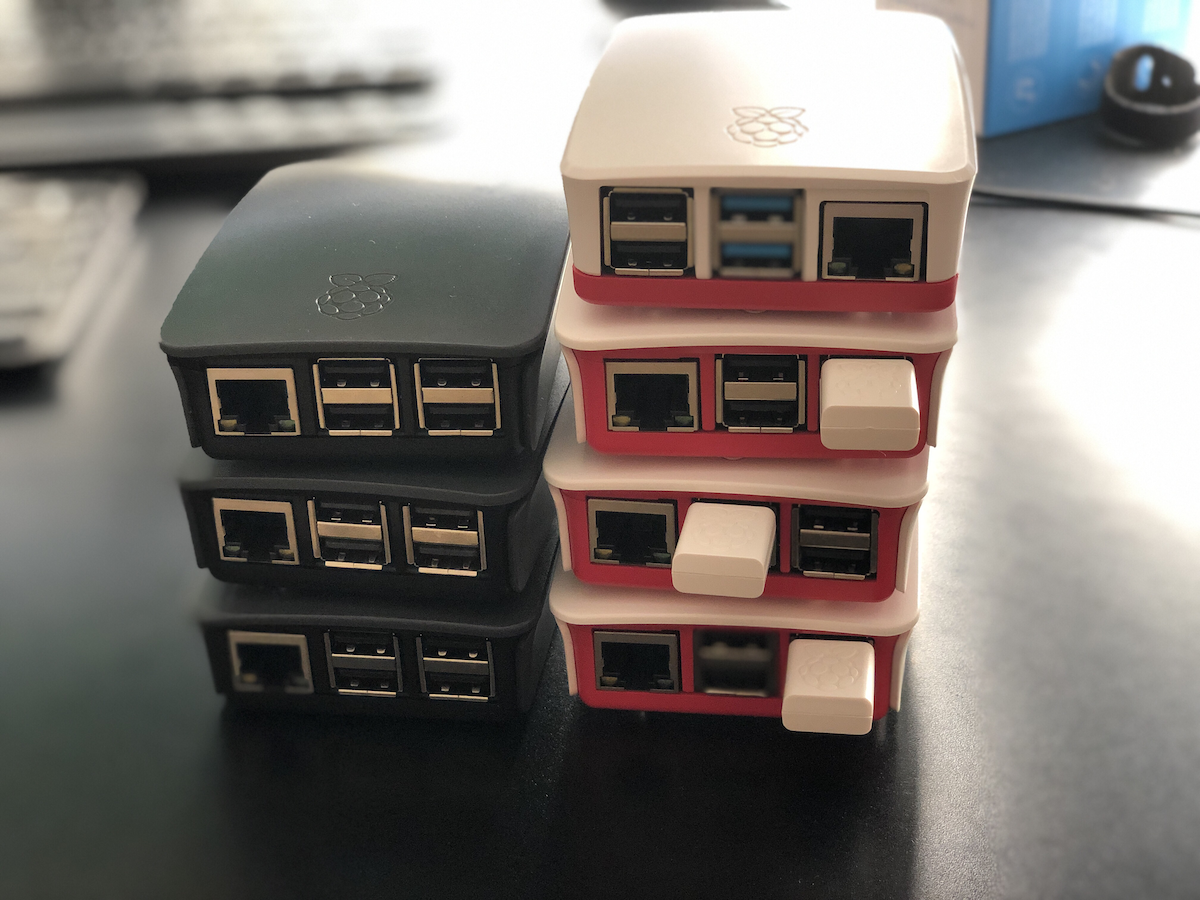
The tool I used was Resilio Sync. Basically a BitTorrent style sync system for personal use, replicating data bidirectionally between wherever I told it to go. At various points that meant a copy on my laptop’s external hard drive, a copy on my NAS, more copies scattered around the house on Raspberry Pis, and for a while, a copy on a VPS. Before that I even had encrypted copies sitting at two different friends’ houses, encrypted specifically so they couldn’t see what was in them, but I could still recover if something went wrong.

It was great, for what it was. It solved exactly one use case: drive failure, or something happening to the house. And it worked. When my NAS died I was sure for a minute I’d lost everything, and then remembered a huge chunk of that data was safely sitting somewhere else entirely.

I paid for Resilio once, something like ten years ago, roughly fifty dollars, plus a twenty dollar upgrade at some point. That’s the entire lifetime cost I paid, and I got my money’s worth many times over. At one point I tried Syncthing, an open source alternative that does something similar, just to see if free was as good as paid. It was fine, but fiddly enough that I didn’t really stick with it back then. More on that later, because that part of the story isn’t over.

The hardware I used for this setup evolved constantly underneath it. I started on Raspberry Pi 2s next to the NAS, moved to Pi 3s, then Pi 4s. I’ve blogged about this system in various forms over the years, so if you go digging through the archive you’ll find the whole lineage.

But here’s the thing I knew for almost as long as I ran it: it never covered data corruption. Not really. Early on that was a vague worry about my own data getting mangled somehow. As cyber threats got worse, and they always were getting worse, it turned into a much sharper question. Was I actually prepared to survive ransomware, or a wiper attack wiping out everything the replication system would happily sync to every node?

So on top of the replication, I’d take manual offline snapshots. Once a year if I was disciplined, once a quarter if I was lucky. Sometimes that meant another spot on the NAS, which isn’t really a proper backup since it’s still one box, but at least it was off the live replication system. Other times it meant a physical hard drive, especially for directories too big to replicate offsite, like my media library.

Generally though, I wasn’t that worried. Everyone’s a target for that kind of attack in theory, but my actual threat model used to be drive failure, full stop. That’s what kept me up at night, if anything did. But the ransomware / wiper concern kept creeping up over time, the way it does.

About a year or two ago I finally decided to address the other backup use cases and to take into account having an immutable backup. I set up my own Borg backup on a Raspberry Pi. I did it mostly manually, with some AI help for suggestions along the way. Then starting around March or April this year, I got a lot more serious about building things fully AI assisted, with the AI actually managing systems directly over SSH. That shift naturally pointed straight at my backup setup. I kept interrogating the AI on the best way to build it out, and as I was standing up new websites and other projects, the whole thing evolved with them.

A couple of iterations later, here’s where it landed. Two separate Borg backup targets. One local, in the house, backing up the big media directories and everything else internally. Good for an immutable copy, but obviously useless if something happens to the house itself, which is why I still take a manual physical hard drive backup periodically. They’re sitting in a safe right now. Future Scott needs to actually get them somewhere outside the house.

Feeding into that, I also moved my laptop’s sync off Resilio and onto the NAS, and funnily enough ended up back on Syncthing to do it. Not because it got better, but because the AI found it easier to set up and manage than Resilio. I set up one way replication, so anything that changes on the NAS doesn’t sync back to the laptop, and that gets picked up on the NAS side for the real backup. It worked perfectly on the first try, which after years of fighting with sync tools felt almost suspicious.

The second target is a VPS, two terabytes, that I got as a deal from lowendbox.com for about thirty dollars a year. Ridiculous deal. Every VPS and Raspberry Pi I run backs up daily to a directory on the NAS. The NAS then spins up a Docker instance for each Borg destination, runs the backup, and shuts itself back down. There’s a separate prune job on my laptop I run to clean up old backups over time.

It’s honestly more robust than a personal backup needs to be. I’ve run a fair number of threat models on it at this point, probably more than necessary, but that’s the improvement over the old system: it’s immutable now, not just replicated.

I’ve got a pattern set up with the AI now where I can just ask it to check the status of everything and give me a detailed report. One of the VPSs also connects into my home network over Tailscale to monitor status, with alerting wired up, so I get a push notification the moment anything isn’t working right.

Really robust. More than I need. Definitely worthwhile anyway.

The current iteration has been running for two months at time of writing this in late August 2026. There was an earlier version before it that ran about two months, before I rebuilt it with some lessons learned. So far, so good.

I’m still debating whether to ship a Raspberry Pi and a large external drive to a friend’s house to replicate everything at home, offsite, the old school way. Then I do the math and realize the total cost of that probably outweighs several years of the two terabyte VPS backup I’m already paying for. So probably not worth it. Still evaluating though, because apparently doing ROI calculations on my own backup strategy is a hobby now, service versus hardware, one spreadsheet at a time.

Overall, very pleased with where it landed.

My Work Tenure Can Legally Drink Now

Today is my eighteenth work anniversary.

At 18 years, my tenure here can drive, vote, and drink alcohol in the UK. So it’s a milestone of sorts, I guess.

This year there isn’t really any updated numbers to run down. In a few months I’ll be moving offices again, back to one I’d been in previously, but other than that, not much has changed on the work front.

The world keeps changing though, and what I’m doing day to day slowly shifts along with it. Some of what I’m doing now is the exact same as last year. Some of it’s completely new. That mix is probably why I still enjoy it, because it changes over time, and every day, every month, can end up a little different and a little the same all at once.

So I’m still sitting here retrospecting on how I blinked and ended up at 18 years somewhere. Never done that before. Probably won’t do it again.

But yeah, it’s been interesting. Here’s to some more. I’d like to say here’s to another 18, but let’s face it, I hope to be able to retire before that.

The Best Seat in the House Wasn’t Good Enough

My dad loved football. The American kind, not everyone else’s kind.

Sundays and Monday nights, he was in front of the TV. Giants fan, though he also just appreciated a good game regardless of who was playing.

What he did not love was going to the stadium. I can only remember one time he actually went, and even then he came home and told me he would rather have watched it at home. Which was hard to argue with in most circumstances. Except this particular time, the circumstances were not exactly ordinary.

When I was a teenager, my dad had a friend who was the 50 yard line cameraman for CBS Sports on Giants games. One day the friend invited him along. That meant my dad got to the stadium early, got photos on the field, and then spent the game sitting in the broadcast booth with John Madden and Pat Summerall, watching them call it live.

The only rule was he could not talk during the broadcast. He was completely fine with that.

When I asked him about it he said it was good. He had a good time. He would rather have watched it on his couch. Less traffic getting home.

That was my dad.

I get the traffic argument, genuinely. Getting from Giants Stadium back to Queens was not a quick trip. But sitting on your couch versus sitting with John Madden watching the game in person and getting photos on the field beforehand? Most people would have taken the traffic.

I take the girls to Emirates a few games a year for the Women’s Super League games, been doing it for a few seasons now. Two trains, bit of a crowd, bit of a hassle. But I think it is fun. Would I do it every week? No. Would I trade my couch for watching from the booth with one of the most famous announcers in the sport?

Not a chance.

Gigabit FOMO

After my recent internet upgrades I ended up with a new dilemma. A good dilemma, but still.

For a while now I have been running Tailscale on all my devices. It handles all my internal services and lets me connect to everything on my home network from anywhere without having to think about it. For privacy on top of that I added the Mullvad VPN exit nodes that Tailscale offers as an add-on. Five dollars a month, integrated straight into the Tailscale network, pick a city and go. No toggling anything off, no conflicts with my internal services. It has been a great setup.

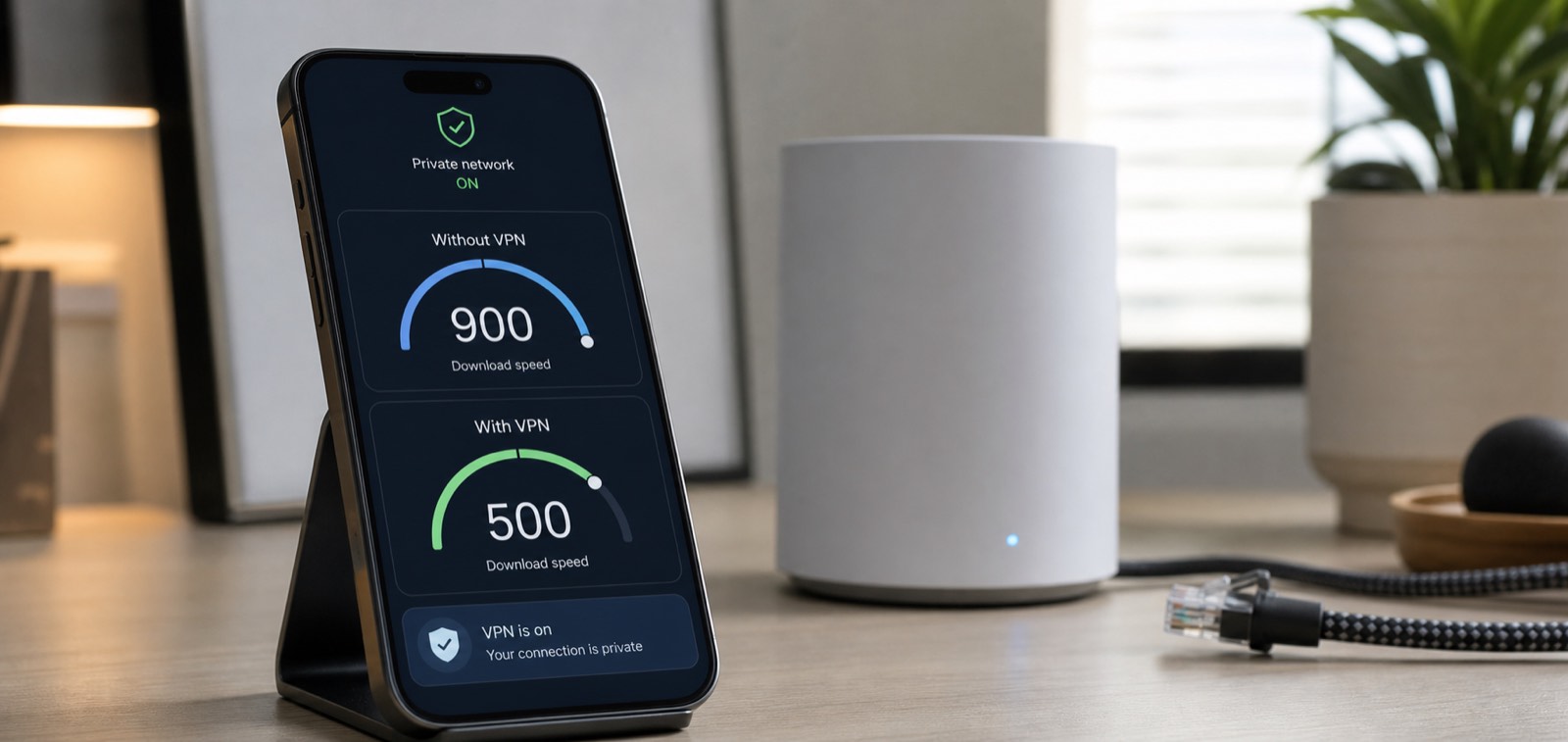
Then I upgraded my home internet to gigabit. And suddenly I started noticing something. On my phone, without the VPN, I was pulling 800 to 900 megabit down. With the VPN on, more like 500. And something in my brain did not like that.

I kept telling myself it was probably in my head. But I wanted to actually know for sure.

So I did some research and thought it through properly. And the conclusion was pretty straightforward. On a phone, do I actually need gigabit download speeds? Am I going to notice the difference between those numbers when loading a webpage? The answer is no. At those speeds the bottleneck is never my connection. It is the server on the other end, or the screen, or just how fast things can render. The gigabit matters when I am downloading something substantial on my computer or my NAS. On a phone or tablet, even streaming HD video, it simply does not matter.

What I had was not a performance problem. It was a psychological one. I upgraded to gigabit, I could see a faster number without the VPN, and some part of my brain decided I was being shortchanged even though in practice I was not missing anything.

The rational answer is obvious. Keep the VPN on. It is more private, more secure, and the speed difference is not something I will ever notice in real use. I just needed to actually verify that before I could accept it.

VPN stays on.

AI For the Mundane Stuff…

I have been using AI for increasingly mundane things I always meant to do but never actually got around to. Most recently, a mystery Mac DMG file.

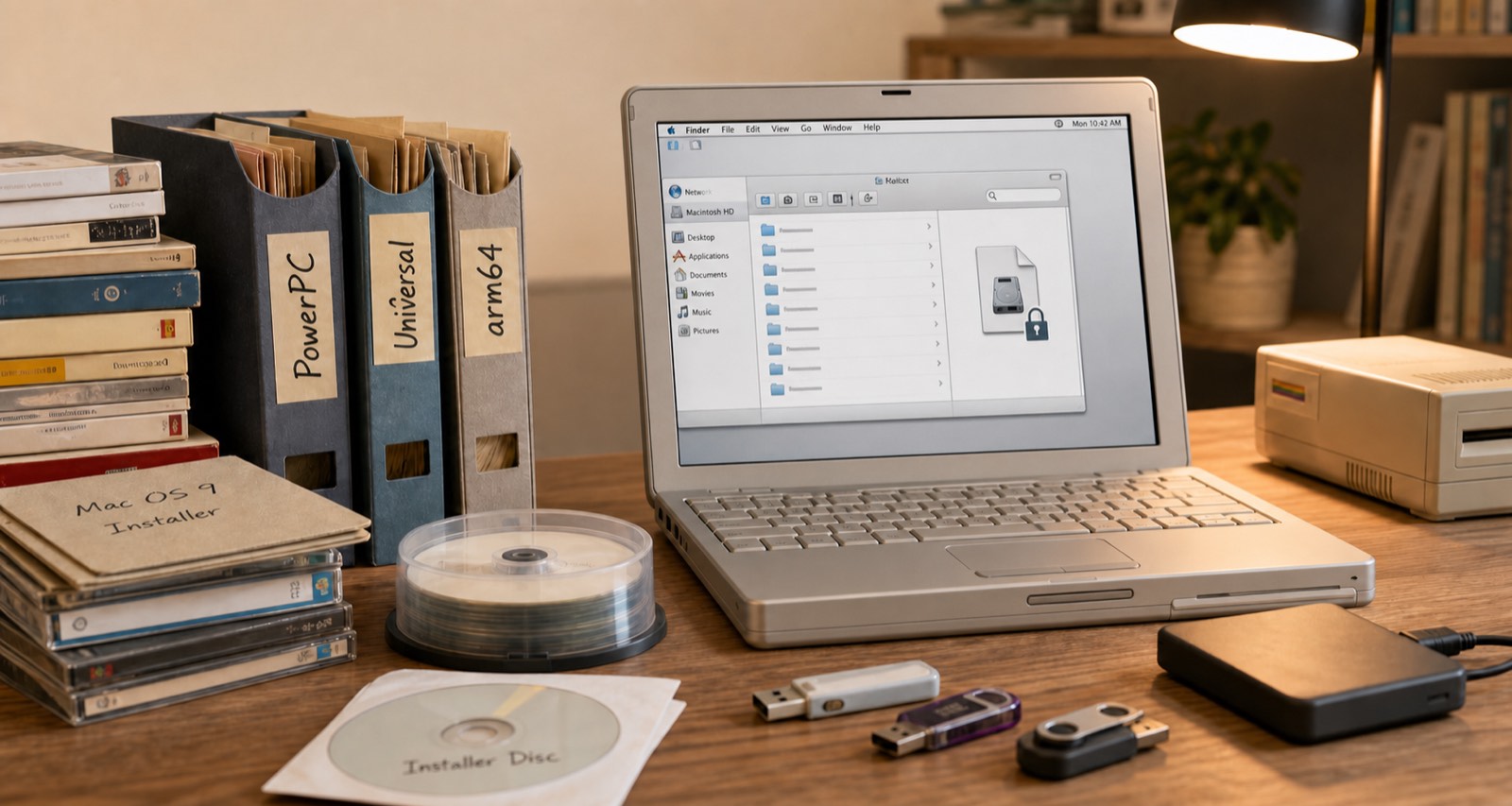
I had a Mac DMG file. About eight gigs. Password protected. I have no idea why I password protected it. I knew roughly what was in it, a big archive of installer packages going back years, but I could not get in because the password I thought it was was not working.

I have been saving installers since back when software did not just update itself over the internet and you actually needed to hold onto major versions. Over time the archive grew across different Mac architectures. PowerPC stuff, then x86 and Universal binaries, and now arm64. So there is a lot in there going back a long time.

I put Claude on the case. I gave it my best guesses at what the password might be, because I did not want it going through every possible combination until the end of time, and it set up a cracking tool locally on my MacBook Air and let it run with those hints. It got in.

So now I had all this data, plus a bunch of other old archives, and the problem was figuring out what was what. File dates only get you so far. Some of it was obvious, certain versions of Microsoft Office are a dead giveaway for the era and architecture. But a lot of it was not.

This matters because I have two PowerPC Macs I picked up vintage that I actually want to use, and I have been thinking about picking up an older Intel Mac for similar reasons. Half of it is just because it is cool to have. The other half is that occasionally I do want to run some old software. So getting the right installer on the right machine is not a trivial question.

A few prompts later, Claude had written a set of scripts that parsed through everything, sorted it by architecture, and organised it all into the right folders. A few back and forth sessions where it asked me questions and I confirmed things, and it had a pretty solid result.

Then I went a step further. I had it size and create read only DMG images for each architecture, correctly sized so the PowerPC stuff would fit on a DVD if I want to burn one, or on a USB key I can move to one of the older machines. Right file systems, right sizes, the lot. About 100 gigs of stuff in total so it took a while to churn through, but my actual involvement was maybe 20 to 30 minutes of back and forth.

I had wanted to do this for years. Total elapsed time was maybe three hours, almost all of it the computer doing the work.

Now it is all backed up, the images are ready, and whenever I get around to spinning up those old machines I can actually do it. Which might not be for a while. But at least now I can.