My New Mechanical Keyboard

I am finding it pretty funny that society in many cases has conditioned us to think new and shiny stuff is better. A few years ago I started reading about getting shaves the old-fashioned soap and a brush. That led me to buying old school one blade safety razors for a time. Since then I’ve evolved to a more expensive and more modern twin blade. My point though is the technology from the middle of last century for me works better than any of the modern stuff. Today I get a better experience with the twin blade and shaving soap and a brush then I ever did with a fancy Mach 3,4, or 5.

Taking that lesson learned I should have come to the same realization on certain technologies. About 9 or 10 years ago Apple released their new style keyboards. It mimics for had a similar movement to keyboards on their laptops. At the time I thought that was the coolest idea that we give me seem typing experience when I work directly on my laptop or when I worked at my desk. The new keyboards were nice and shiny white. The best part was they had a small wireless version was pretty nice size compared to previous wireless keyboards.

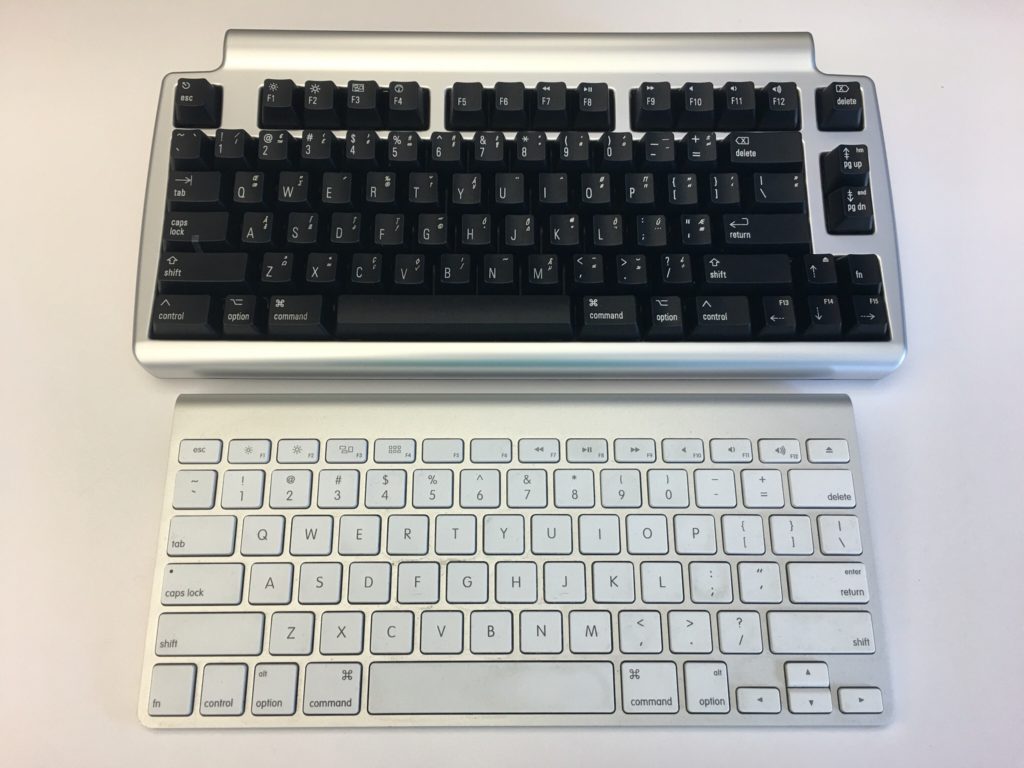
At that time I had been using a White Apple Keyboard 109 Keys A1048.  I wasn’t that impressed with those keyboards and I’m not really sure why I got rid of my prior keyboard the Apple Pro Keyboard (M7803). Those were really good. I think it was related to the fact that at the time I was using an iMac and they came with the white 109 key keyboard. I likely would’ve sold the Pro keyboard when getting rid of a PowerBook. Looking back that was probably a huge mistake. At the time I thought the upgrade to the laptop like sleek mobile keyboard would be a smart move for me.  Even after I had the new keyboards for years I was relatively happy with them.  Flash forward nine years and I saw an article talking about the highlights of a Bluetooth wireless mechanical keyboard that also muffles mechanical movement sound (the Matias Laptop Pro Keyboard for Mac). Even though I was interested, I thought that at the time that I was generally happy with what I had so it wasn’t worth the money.

The idea of the keyboard was still pretty cool yet I was still interested in trying to help my hands make it through the day of typing. I have had repetitive stress issues with my hands on and off for a while. Well I think that’s what it is. Let’s be honest the one Tyler brought up to my doctor he said just rushed her hands and you’ll be fine since the issue seemed very mild.  That being said on some days towards the end of the day my hands feel really tired from the typing. That has been a major driving factor for me to use the dictation.

A few weeks ago the topic came up with someone at work. I think we were either discussing wrist pain or that he was building a vintage computer that the discussion on old-school mechanical keyboards came up. As it turns out he had done a lot of research on the topic and was able to geek out with me on the different mechanical movements of old-school keyboards. I showed him the link to the Matias and we did some basic research on it. Turns out the Matias is based on the same Alpine mechanism that the Apple Pro keyboards were that I liked so much. With that knowledge and a renewed focus on my typing comfort I splurged on the keyboard.

When I first got it I was concerned that it would take me some time to adjust. I’m always worried that during that adjustment. I’ll get set up and just not like it. That leads to returning or not using the device in question. With the Matias keyboard however within an hour or so I realized its value. It felt that I could type faster with it then I was on my old one. It also immediately felt comfortable to use. On both counts I was extremely pleased.

The only drawback I’ve noticed is that I have to tell it to connect to my laptop every morning. It’s more of a minor inconvenience than anything else. There were one or two days in the past month where it didn’t connect and I needed to go into Bluetooth settings and reset it. The only other issue I’ve had is only once or twice there was some lag from when I typed something to when it went on the computer screen. Reviews of the Bluetooth keyboard reported similar issues however it’s not a major problem for me at this point. I like a wireless keyboard over a wired one however if I need to buy another one might pick up the wired version.

Since I do most of my typing at work this keyboard home at present is in my office. It is so much nicer to use this mechanical keyboard versus the new Apple rechargeable wireless keyboard that I have at my desk at home. I bought one of the rechargeable keyboards and it came out since using or chargeable batteries in the old blue two keyboards were pain. They weren’t keeping charges. I was also curious at the time if the new keyboards would be more comfortable to use then the old ones. It wasn’t. I was surprised at how much worse the new one felt to type on. At this point I think I’m gonna save and buy another one for home.

If this was a product review I would likely give it five stars.

I Can Finally Stop Tinkering With my Media Center, For Now…

I make a conscious effort to limit what personal family details I post however I do enjoy writing this blog. That means I typically focus my writing around technology. I find tech interesting and it’s a huge part of my life. Not the largest part however big enough that there are plenty of topics to write about. Looking back at my blog posts over the past few months I thought I talked extensively about my media center setup challanges. I was surprised then to realize that I haven’t written about my evolving use of my Apple TV 4 since I purchased it late last year: My New Apple TV.

I was happy that on day one the new Apple TV ran the latest version of the Plex app. The challenge I had was that Plex is only half of my media center/TV watching set up. Content purchased from the iTunes store makes up part of the other half of my use case. Live TV takes up the rest. The big roadblock after I got my Apple TV was it couldn’t stream live TV. I have a HDHome Run from Silicon Dust that takes my cable card and streams my cable TV to any networked device that can receive it. The Apple TV does not natively support this. Silicon dust does not have their own app for the Apple TV (yet anyway). Initially that was extremely frustrating. It required me to maintain other device just so we can watch live TV. That complicated media center use for my wife. Ease-of-use is critical for her and I. For her she just wanted it to work reliably. For me I don’t want to get frantic calls or texts that my daughters can’t watch curious George because something hokey is going on.

Luckily for me after the new year I stumbled across not one but two applications in the Apple TV app store that supported streaming TV from an HDHome Run. I got into the beta program of one app however there were some challenges with the audio being out of sync with the video. That was a problem that I had with my Kodi Media Center on my Raspberry Pi. I then found the second app which cost about $15 buy however it was out of beta and it looked too promising not to try it. I am so glad I did. It worked perfectly. Now I was able to have Plex, iTunes, and live TV all on my Apple TV. That enabled me to simplify the media center substantially and thus make it easier to use.

The streaming TV app works pretty flawlessly. I was able to clean up the cables and devices in my media Center when I no longer needed my android TV, Raspberry Pi OSMC, and Mac Mini running Plex. All those devices at one time or another were testbeds that failed in one way or another. I still have one Raspberry Pi plugged into an HDMI cable in my media Center however that is usually just for when I’m building something. My media center experience is not dependent on it though.

Experimenting and finding the most optimal set up for us for TV/media consumption took a pretty long time. I am glad the technology caught up to to the requirements that I was looking for. The setup has been pretty stable for the past several months. I haven’t made any major changes to it since getting the T streaming app. I have been adding additional apps to the Apple TV however the basic configuration doesn’t change. I do want to try getting a game controller and seeing if there are any good games on the Apple TV.  I no longer have an Xbox 360 so at present nomgaming platform of any kind. Of course I haven’t played an Xbox game in four years don’t miss it all that much most of the time.

A New Mac Mini Please…

My desktop computer at home is a 2012 Apple Mac mini. At the time I got the slightly upgraded version with the fusion drive and 16 gigs of RAM. Four years later it is starting to show its age. For most people it would probably still be a perfectly good computer however there are certain functions I’m noticing I need more power.

I would love to retire this Mini and relegated to act as a backup node on my Bittorrent Sync network. The challenge that I have is that the current Mac Mini model is from 2014. I cannot justify myself to buy a brand-new computer with technology that’s two years old to replace a four-year-old computer. My choices then are either purchasing iMac, build myself a Windows 10 or a Linux machine. My only other option is to wait for the mini to be refreshed.

For me Windows is not practical. I haven’t used Windows as my primary computer for work or professional life in years. I use a Windows computer when I need to at work and I have virtual machines for when I need it however living on one at home day in and day out just doesn’t seem like something I want to do. I have been wanting to build a Linux desktop however today it doesn’t offer me all the software I would need to replace my Mac. The iMac is compelling however I have not been a fan of the all in one computers. I’ve owned several iMacs and had challenges with some of them. Every time I think man those are cool I remember my burn in issues I had on to back to back iMac’s. Other reasons to avoid an iMac is I have been eyeing a bigger monitor than my current 27 inch. I would love a 34 inch widescreen however the current mini I have cannot support the resolution for one. If I do end up getting a second desktop running Linux I would want to plug it into the same monitor. I’m trying to stay is future proof on whatever I buy now as possible.

Since I haven’t been able to come up with a solution I am happy with I continue to wait. Every Apple announcement I hope they will refresh the Mac Mini and then sadly they don’t.

I know the one last option I have that I didn’t mention prior since it is super expensive is the full Mac Pro desktop. The cost alone is a nonstarter for me. Add to that it has not been refreshed as long or longer than the mini makes it not a viable option for me.

As Tom Petty says the waiting is the hardest part. Now I wait some more…

Jawbone Up to Fitbit

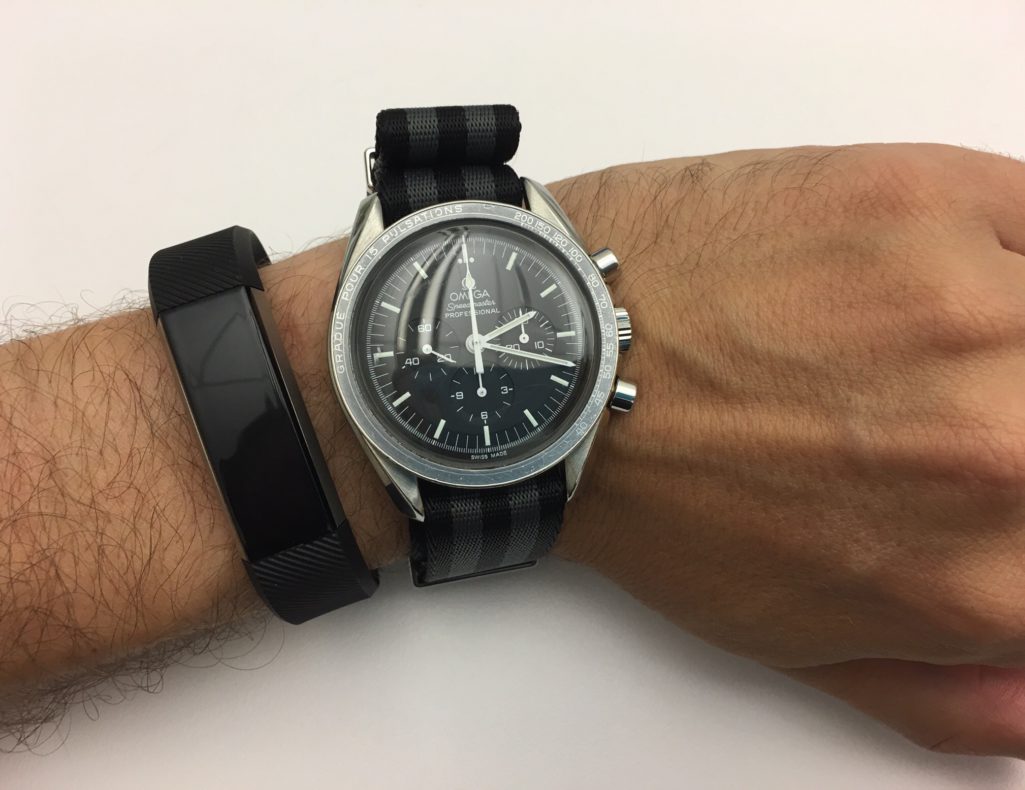
I’ve been using a jawbone up as my activity tracker since they became a product. I love that they were small bands that I could wear in addition to my watch that did pretty much all I needed them to. I was frustrated that the first generation recalled however pleased that that the company Jawbone was smart enough to give me a full refund. I was excited when the second generation came out and waited weeks for one to come in stock to purchase. Later I was frustrated at how often my second-generation band would break however pretty pleased that the company would continue to give me new ones. After upwards of five bands however that got old pretty quick. I have blogged in the past around my challenges with my jawbones. (http://scottodyssey.com/?s=jawbone+up&submit=Start+searching).

Even with all my problems with the UP I continue to choose it over the Fitbit Flex  as far back as late 2013. After the second generation UP, i purchased the UP24 (possibly 2 of them) I then bought an UP2 when the 24 finally died. My first UP2 started to lose its battery charge earlier this year. It also lost top paint covering on the metal that rests against my watch. It didn’t look good but it worked until the battery started dying. I then bought another one with a more rubbery strap. This weekend that latest UP2’s rubber strap ripped. I was able to wear it for a little while longer however became so frustrating to wear and looked really stupid I decided I needed to buy something else.

The challenge for me was I did not want to buy and other band from Jawbone after going through at least 10 of them in three or four years. Granted I didn’t end up paying for many of those since they were warranty replacements I did have to  pay for more than one or two of them.

For me technology purchases usually work out the best when they are well thought out. I know myself and I have specific requirements. Because of that I tried to remember why I selected the jawbone over the fit that when I owned both at the same time. I do remember that the jawbone felt like a more accurate step count. The silent alarming also felt like it was better however I know that fitbit has improved on that since I last owned one. Separate from my previous owning a Fitbit I do not like that Apple and fitbit do not work very well together. Specifically Fitbit does not talk to apples Health application. After some brief research I did find out that there is an app that will sync that data between the two devices. I also found out that both myFitnessPal, and Withings can talk to Fitbit with no problem. That will allow me to continue to use my Withings scale and myFitnesspal with a Fitbit. With all that information in mind I went out to the store to check out the new Fitbit Alta compared to the Fitbit Flex. Both appeared to be the same size however the Alta had a small display. I wasn’t fully clear if the altar had significantly improved sensors for the extra price it cost. Since I wasn’t sure I erred on the side of caution and splurged the extra money for the Alta.

Set up of the device was pretty trivial. Syncing between all the apps that I use was equally simple to do. The device feels pretty sturdy on my wrist. I’m curious how long the battery life will last. I confirmed for me the displays useless since I turned off all notifications such as text messages and phone calls. I also turned off the auto on function or whatever they call it that turns the clock on when I lift my wrist up. I have a watch I don’t need this band to act like one. I just needed to track my activity and silently alarm me to be more active. So far it’s been pretty successful at doing that.

A minor side benefit to switching to Fitbit over jawbone is apparently several people I know have Fitbit’s and I’m already in competition with several of them to keep my step count up. Several people at work have talked about doing something similar with Virgin Pluse activity trackers that our health insurance company is offering for free. I don’t like the idea providing medical and activity details to my insurance company so I opted out. This gives me the gamification of working out that I want but doesn’t share the data as much.

I’m hopeful that this was a sound purchase and it will last more than a few months.

Showing a Little Bit (a lot) of Geek

I always though it was cool to have interesting stickers on technology gear. I never did it since I always tried to keep my stuff in pristine condition since I knew that I would likely want to sell it to buy something newer down the road. I know many of the stickers on laptops these days say they are removable. The challenges after you remove them you generally can see that there was something there previously. That’s not good if you want to try to sell something later on.

It didn’t dawn on me until recently that I could show off my geek side on my work here since that’s not something I will ever personally go and sell. Plenty of people in the office I’ve seen have done it and it was never something I thought to do until I started looking at Pinterest.

Earlier this month I bought a few stickers. Last Friday I got around to putting them on my laptop. I know I think they are pretty cool…

Mac Quicken Update

I’ve been using Quicken 2016 on my Mac for a few weeks now. I have had less issues regarding duplicate transactions than I did with Bankify. That’s the good news. There are some growing pains however. Not everything works as well as I would like. There’s one stock that the system won’t find so I have to manually updated if I want to get the correct values.

I haven’t had as much problems with reconciling my accounts as I did with Bankify however it hasn’t been all roses and rainbows. I’m not sure if it’s just issues I didn’t catch in the migration or issues in downloading of the data. It is definitely easier to reconcile however than the old system. So my main objective has been successful.

Other challenges I’ve had with finding things. Editing a payee or category wasn’t a straightforward as I thought it would be. There is no menu option to go to payees. You have to start typing in a payee and then click on the edit button to bring you up all of the payees in window to edit them. If you don’t know that it’s frustrating. The iOS app didn’t seem that useful however I haven’t played with it that much. Of course I haven’t played with that much because it didn’t seem that useful.


All in all I’m hoping Quicken improves with a new Quicken 2017 soon however my challenges are not enough to want me to go back to Bankify. I’ll see how things are going in another month or so.

Blog Update

I haven’t been updating this blog in a while. That is usually a sign of me not writing however  I have been doing a lot of off-line journaling as I mentioned in Dragon Anywhere. Some topics I would like to write about for this blog however I just haven’t had a chance to get to them. I do feel like I’ve gotten a handle on my journaling enough that I’m going to try to churn out a few topics that I’ve been meaning to write about. The first one is already scheduled to post tomorrow is a follow-up to something I wrote and backdated earlier this month.

It does feel like every few years I write a post like this about how I want to write more. I always do want to write more. Getting into the routine is always the hard part. Getting pretty close right now so stay tuned.

Dragon Anywhere

By the looks of my posts on this blog it would seem like I’m not writing much for some time. In recent months as far back as February I’ve started to journal more. The difference I guess is that the journals are private. The fact that I am writing at all is a positive for me.

I wanted to write more in general for some time. I’ve also wanted to be more active in my journaling. It’s something I wanted to do when Teagan was born and I did for a little while but didn’t keep it up. I’d like to say I’ve improved because of my determination to write. Slightly true however I feel like there is a different answer. That answer to me is Dragon Dictate. My so-called writing isn’t in fact writing it all. It’s mainly my dictation letting the software do the typing. I’ve had Dragon Dictate for several versions on my Mac. I think it’s a fantastic piece of software. My proof is that I think over time spent more on upgrades for it then on any other single piece of software. Unfortunately what has happened in the past is I will get it and use it and then start using it less over time. Part of that was due to feeling self-conscious about using dictation at work. The other part being probably just general laziness. Flash forward to this February I think I got rid of the laziness factor and just started dedicating some more time to writing. Using the dictation software I was able to actually write faster. That meant I could write more in the same amount of time or just get finished quicker.

Once I started sitting at my computer and dictating it was still challenging to find time to do that. I started using the dictation option built right into Siri on my iPhone to dictate into the journaling I use DayOne. That work rather well however it did require corrections more often than I would like. It also required me to do bursts of sentences quickly before the dictation stopped listening. This method still enabled me to keep writing almost daily.

The next big improvement for me was signing up for the Dragon anywhere subscription sometime around May. As a monthly service it’s kind of expensive for what it does. It gives me and always listening dictation option. I find that much better and more accurate than the built-in Siri option for dictation. I figured for $15 a month I would give it a try. What I found that I’m doing now is that I will dictate as I’m walking. I get a lot of my journaling done now between walking from the subway home and walking from the subway to my office. I probably just look like someone talking on the speakerphone to someone however it works surprisingly well.

I still want to do more. I’ve a list of draft topics in my Dragon anywhere app for things that I’m either partially done with or to do’s. That gets me back to trying to find more time in the day to dedicate towards “writting”. My other option is to just go on longer walks! Either way if unable to carve out more time I hope to write more about topics fit for this blog. I’m trying to do some cool things as a hobby however I don’t have the time talk about it.

Other than a few manual corrections this in my last several posts were entirely dictated.

Hello again Quicken, goodbye Bankify

For the past few years I’ve been using iBank / Bankify for my personal financial management. I documented my move to iBank in a previous post. Finding a Mac compatible financial application was the final app that I needed to completely go Mac only not require a virtual machine for my personal use.
I’ve been generally okay with iBank now Bankify however there been some lingering challenges. First and foremost I keep getting duplicate transactions even after I downloaded from my bank. What that means is I sometimes have to spend hours each month trying to reconcile my accounts because a single transaction might have three or four transactions in my register. It also might turn out that several of those transactions if the account transfers might show up as a transfer to the wrong account thus throwing off balances across multiple accounts.
This year one of my financial goals was to automate bimonthly banking and bill payment as much as possible. This bug has caused challenges to completing the objective. This month I had a renewed desire to find an alternative. I tried you need a budget however the downloading of transactions from my bank seemed to be clunky. It also focuses on budget only. That’s important to me however I need an app that can do more. My sites then turned to Quicken since their 2016 Mac upgrade it seems to have been a big improvement over the 2015 one. I know it doesn’t have all the same features as the Windows version however I wanted to stay native Mac. I did contemplate trying the Windows version however I don’t think I need some of the advanced features that the Mac version does not offer. That is why today I bought Quicken for the Mac 2016.
The import process went surprisingly painlessly. My export from Bankify went over without any problems. The import of that file to Quicken also appears to of been painless. I need to go through each account and confirm the balances make sure everything is correct. For now it looks like this is the easiest migration I’ve had to do. In the past I went from Quicken for Windows to Mac and then back again. Then I went from Quicken to Bankify. Each of those migrations was painful and took a lot of time to validate things right or to tweak the process in order to get a good copy of my data. Part of my problem is trying to keep and migrate 16 years of data. I don’t need it but I want it and since it’s all in one file should be straightforward to migrate. I do have an additional eight years of data in other files that I don’t migrate but I have all of my financial transactions going back to my freshman year in college in some sort of backup or another. At some point soon I need to archive old transactions to an off-line backup so I don’t have all of it on an Internet connected machine. That’s my next step.